Today, we are going to create our very own virtual pet using Scratch. We will learn how to add a sprite, which will be our pet, change its size and colour, and even make it move and bark! Are you ready to start this coding adventure? Let's go!
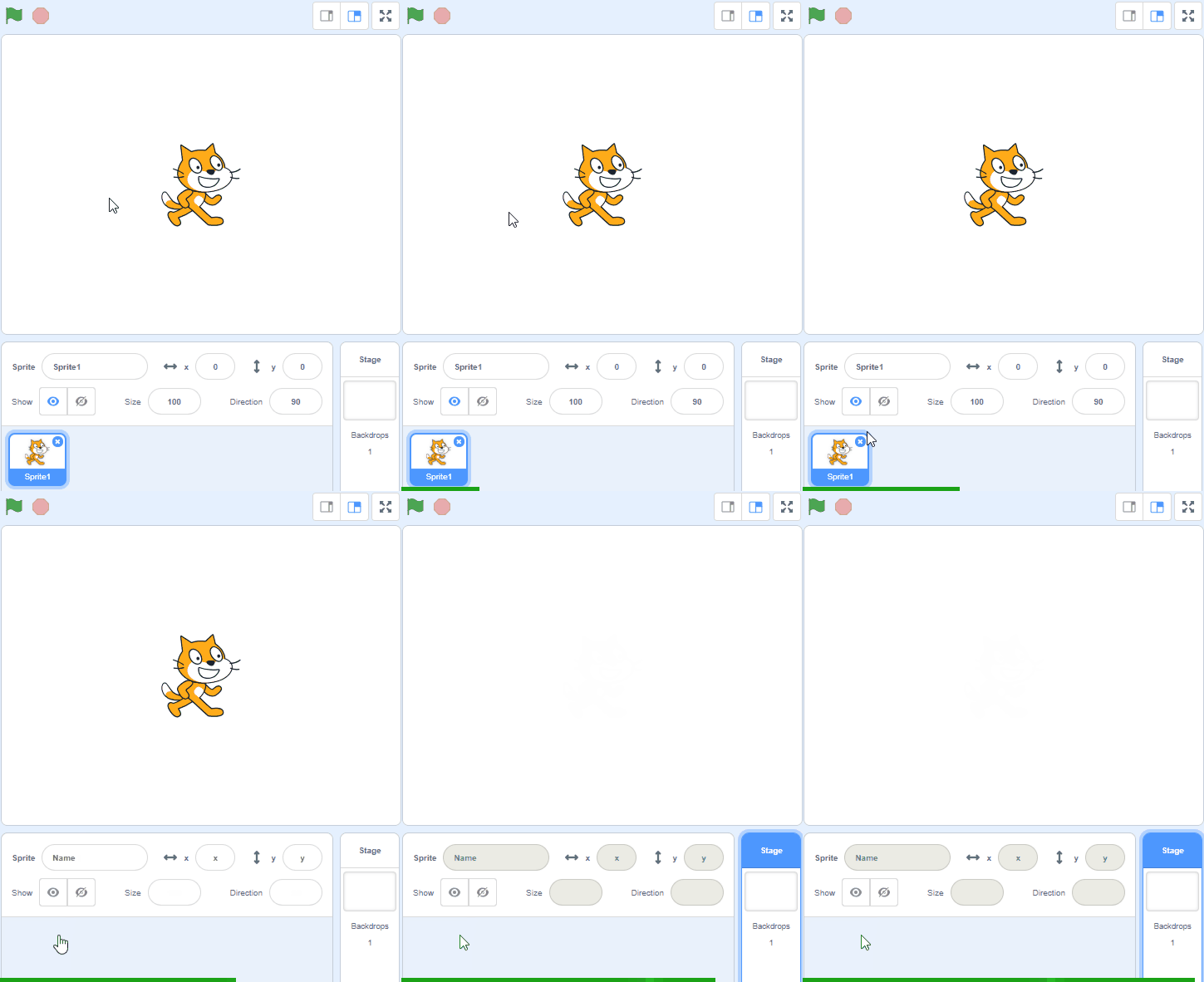
Open the Scratch website and create a new project. Delete the cat sprite from the project.
Go to the Scratch website using the link below and click on the 'Create' link in the blue bar at the top.
By default, each new project starts with the cat sprite already added. To delete the cat click on the x in the blue circle beside the cat in the sprite list.
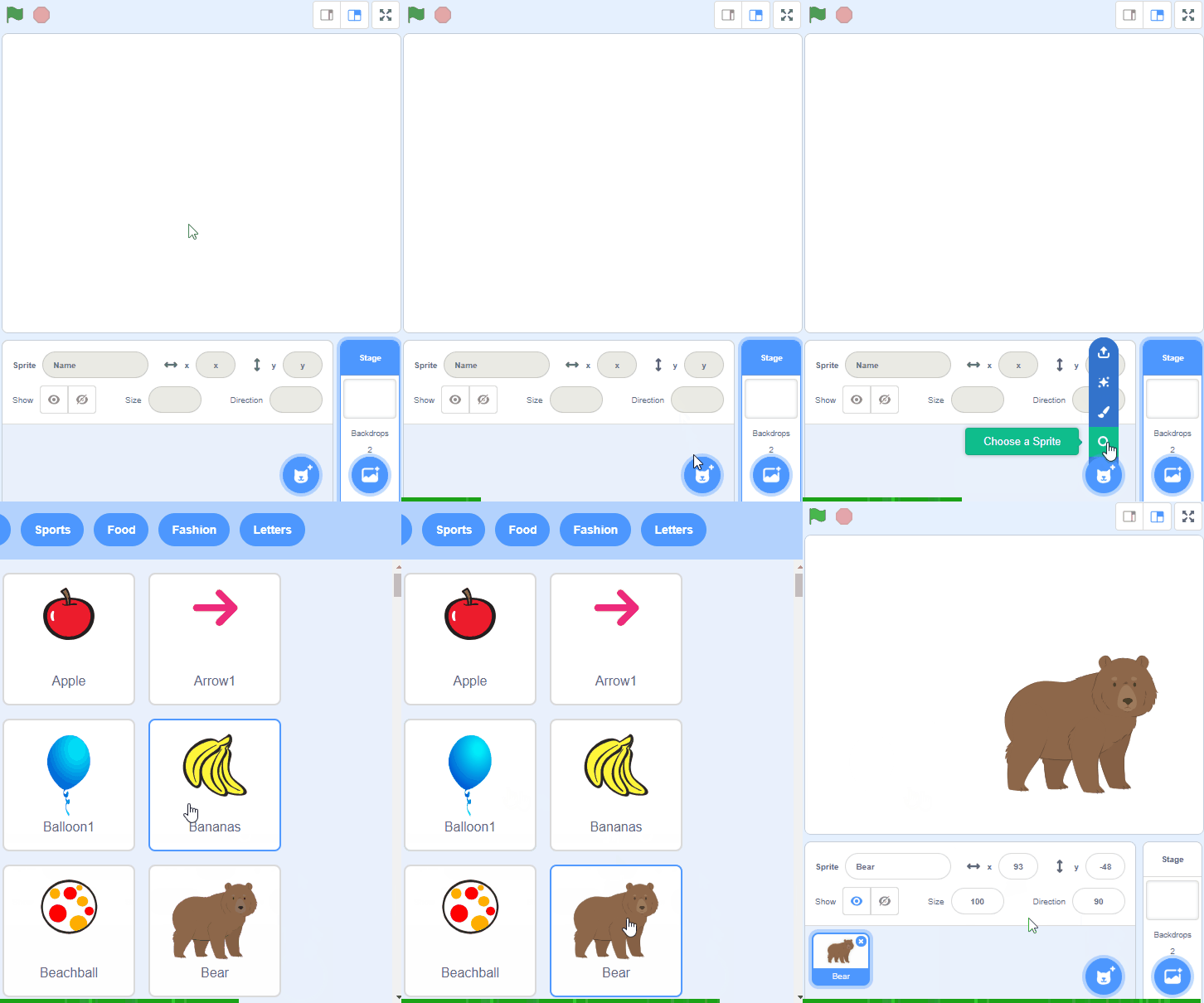
First, let's add a sprite for our pet. Click on the 'Choose a sprite' button and select Dot from the list.
To add a sprite from the sprite library follow these steps:
You can use search box or the filter links (Animals, People, Fantasy etc) to locate your sprite.
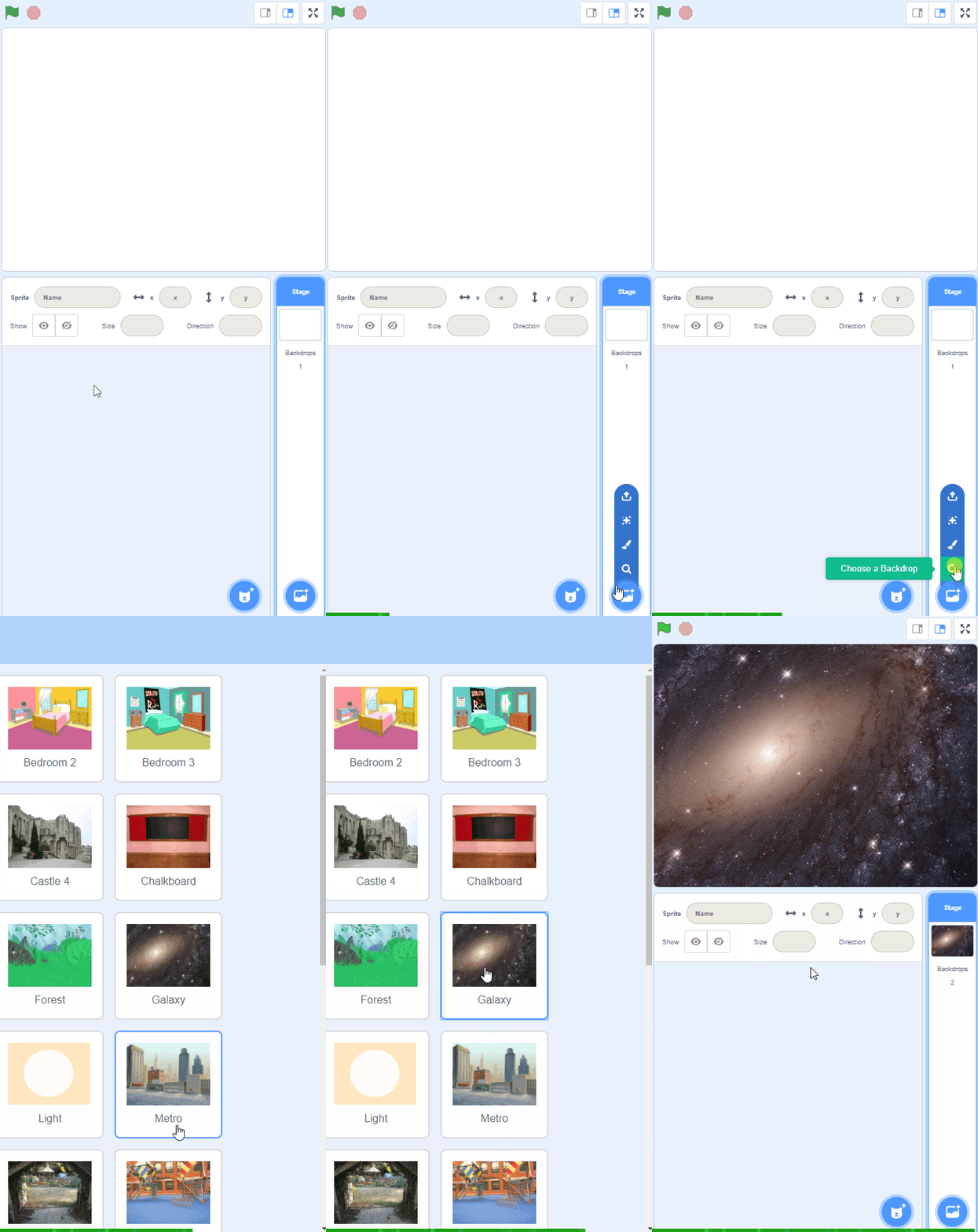
Now, let's add a backdrop. Click on the 'Choose a backdrop' button and select Boardwalk from the list.
To add a backdrop from the backdrop library follow these steps:
You can use search box or the filter links (Fantasy, Music, Sports etc) to locate your backdrop.
You're previewing this lesson. Get full access to this lesson and hundreds more — each one ready to teach, with interactive activities, printable resources and pupil progress tracking built in.