1 - Introduction ~5 mins
Welcome
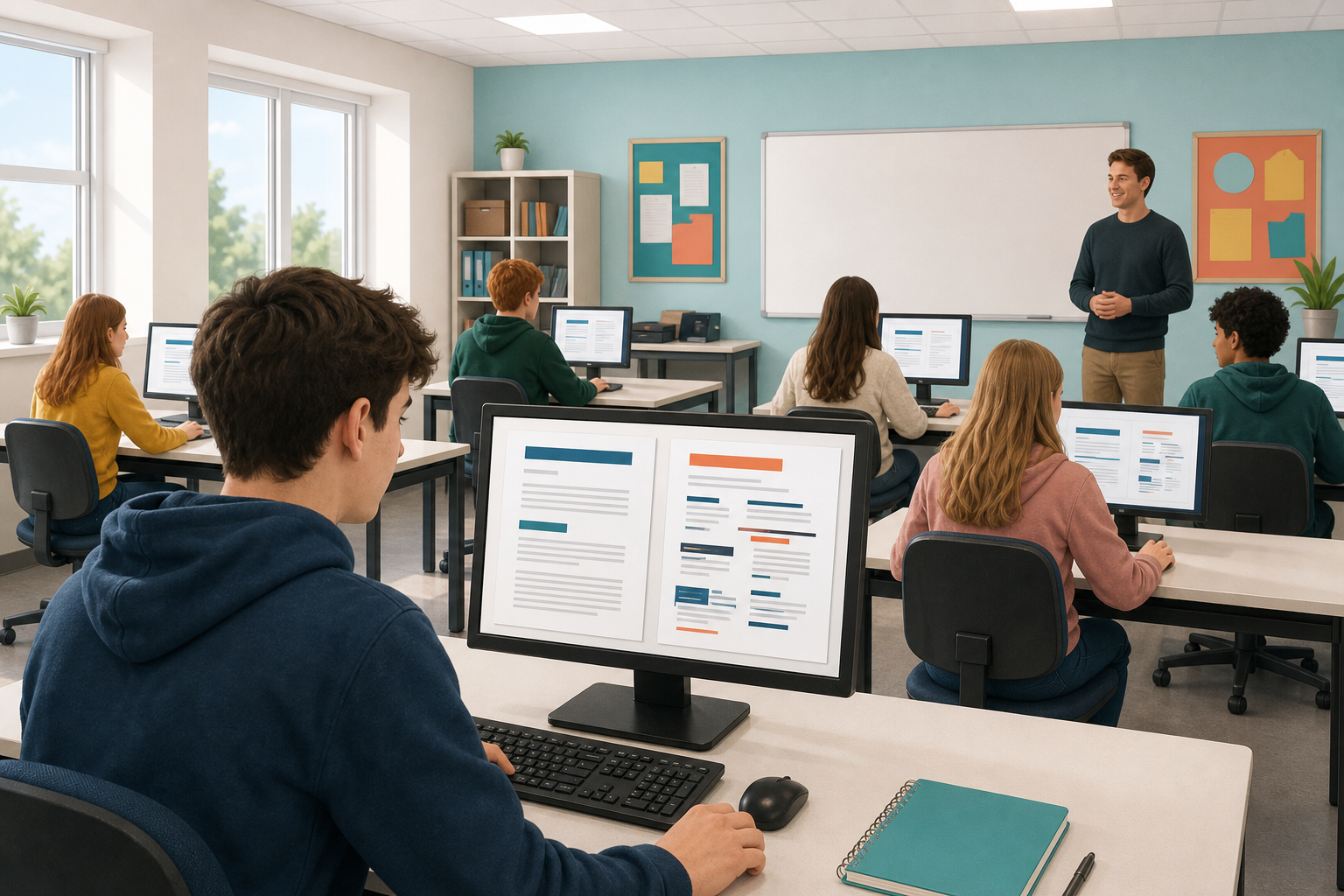 Direct formatting (clicking Bold or changing font size by hand) is fine on a short flyer. On a longer project document it falls apart: headings drift to different sizes and a last-minute rename means hunting every title by eye. Styles fix that. You name a paragraph Heading 1 or Normal once, and the document stays consistent. If you have been bolding headings by hand until now, that is normal — today you learn the faster habit, and undo is always there if a click goes wrong.
What you will be able to do today
- Say why styles beat formatting headings by hand once a document runs to several pages
- Put the built-in Heading 1, Heading 2 and Normal styles on your paragraphs
- Change your own project document so every section heading uses a style instead of hand-picked bold and sizes
Which file do I open?
- Open whatever is latest in {{code:Project_Portfolio/09_specialism/sm1}} — even a half-page draft.
- No project file yet? You will build a short practice proposal with the class first, and you can use that as your draft when you come to work on your own document later in the lesson.
- A thin draft is enough: today you only need one title and a couple of section lines.
Warm-up
Watch your teacher's short before-and-after on screen (uneven bold headings versus styled ones). How sure are you that you would catch every heading if you resized them all by hand right now?
2 - Key Concepts ~6 mins
Styles are named formatting recipes. You apply the name; the app applies the look. That is why long documents stay tidy and why a linked table of contents (later in this module) can build itself from your headings.
| Concept | Why it matters | Example |
|---|---|---|
| Style — a named formatting recipe (font, size, weight, spacing) applied to a whole paragraph in one click | One change to the style later can update every paragraph that uses it, so you stop fixing headings one by one | Every main section title in a Work Experience report set to Heading 1 so they all match |
| Direct formatting — changing bold, size, or colour on selected text without using a style name | Fine for a quick tweak; unreliable on multi-page coursework because small differences pile up | Bolding each heading by hand and ending up with three different sizes on the same proposal |
| Heading 1 / Heading 2 — built-in styles for the main title and section headings | Creates a clear hierarchy readers (and later, a table of contents) can follow | Heading 1 for the proposal title; Heading 2 for Budget, then Start-up costs under it in an enterprise pitch |
| Normal — the default body-text style for ordinary paragraphs (called Normal text in Google Docs) | Keeps body text consistent so only real headings stand out | All paragraphs under each Work Experience section stay the same size and spacing |
Find styles: Word for the web — Home tab, Styles gallery. Google Docs — toolbar styles dropdown (or Format, Paragraph styles).
Worked example snapshot
In the step-by-step you will format a short practice proposal with this structure. Later in the lesson you do the same thing on your own real project document; this snapshot is only the teaching model.
- Heading 1: Side Hustle Proposal: Custom Sticker Printing
- Heading 2 titles (four separate lines):
- The idea
- Who it is for
- What I need to start
- Next steps
- Normal: short body paragraphs under each heading
3 - Step-by-step Task ~15 mins
Create a short practice proposal from a ready-made text block, then format it with Heading 1, Heading 2, and Normal styles instead of hand-picked fonts. This is the model you will copy onto your real project document next.
4 - Common Issues ~4 mins
Common Issues
| Issue | Solution |
|---|---|
| I cannot find Heading 1 in the list | In Word for the web, open the Styles gallery on the Home tab (use the expand control if only a few styles show). In Google Docs, use the toolbar styles dropdown first; if needed, use {{menu:Format -> Paragraph styles}}. |
| The whole document turned into a giant heading | You had everything selected. Press {{kbd:Ctrl+Z}} (Windows/Chromebook) or {{kbd:Cmd+Z}} (Mac) to undo. Click once inside a single paragraph, then apply the style to that paragraph only. |
| I applied Heading 2 but it still looks like ordinary bold text | Clear leftover direct formatting first: click in the line, apply Normal / Normal text, then apply Heading 2 again. Styles and leftover hand-formatting can fight each other. |
| My keyboard shortcut does nothing | Click inside the paragraph first. Shortcuts work reliably in Google Docs ({{kbd:Ctrl+Alt+1}} / {{kbd:Ctrl+Alt+2}}, or {{kbd:Cmd+Option+1}} / {{kbd:Cmd+Option+2}} on Mac). In Word for the web, use the Styles gallery on the Home tab instead. |
5 - Independent Practice ~20 mins
Independent Practice
- Open: In {{code:Project_Portfolio/09_specialism/sm1}}, open your latest project document (the previous lesson often saved a version with a name like {{code:sm1_doc1_from_template_v3}}). No project file? Copy useful headings from {{code:sm1_styles_practice}} into a new document in {{code:sm1}} and treat that as your draft.
- Apply: Heading 1 on the main title. Heading 2 on every real section heading. Normal on body paragraphs.
- Clean-up: If a heading still looks messy, apply Normal first, then Heading 2 again.
- Thin draft: Add genuine Heading 2 sections until you have at least two (for example Costs, Audience, or Next steps).
- Save as: Rename the updated file {{code:sm1_doc1_from_template_v4}} and keep it in {{code:09_specialism/sm1}}.
Minimum for today: Heading 1 on your title, Heading 2 on at least two section headings, Normal on body text, saved as {{code:sm1_doc1_from_template_v4}}. That is enough for your teacher to keep.
Keep this v4 file in your {{code:sm1}} folder. It shows the skill, and you will build the full write-up on top of it later.
How to apply (reminder):- Both (do this first if a head looks wrong): Normal, then Heading 2 again
- Word for the web: Home tab, Styles gallery
- Google Docs: toolbar styles dropdown, or Format, Paragraph styles
- Both: click once inside the paragraph only — do not select the whole document
- Your main title uses Heading 1 and at least two genuine section headings use Heading 2
- Body paragraphs use Normal style and no longer rely on random hand-picked sizes
- Scanning the page, headings form a clear hierarchy a supervisor or teacher could follow quickly
- {{code:sm1_doc1_from_template_v4}} is saved inside {{code:09_specialism/sm1}}
Unlock the full learning experience
You're previewing this lesson. Get full access to this lesson and hundreds more — each one ready to teach, with interactive activities, printable resources and pupil progress tracking built in.
This lesson is copyright of 123Learn.ie 2017 - 2025. Unauthorised use, copying or distribution is not allowed.