 Today you are coding with the micro:bit. You will build a wearable step counter you can walk with, watch the count on the LEDs, and check how accurate it is.
You already know how to open a MakeCode project and send code to a micro:bit. We will predict, build step by step, run it on the board, investigate the count, modify it, and test again.
What do you think the micro:bit can sense so it knows you took a step?
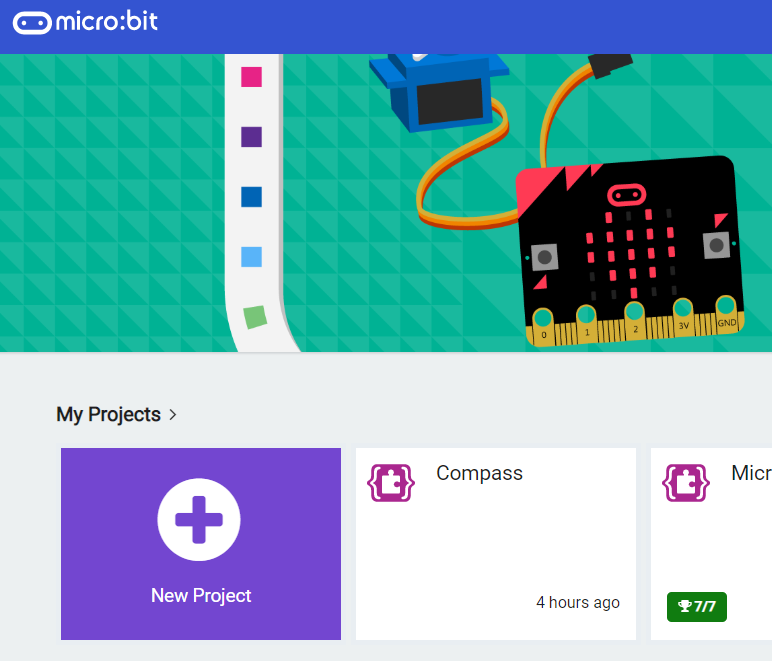
Go to the makecode.microbit.org website and create a new project.
Go to the Makecode.com Microbit website using the link below and click on the 'New Project' button underneath the 'My Projects' heading.
https://makecode.microbit.org/
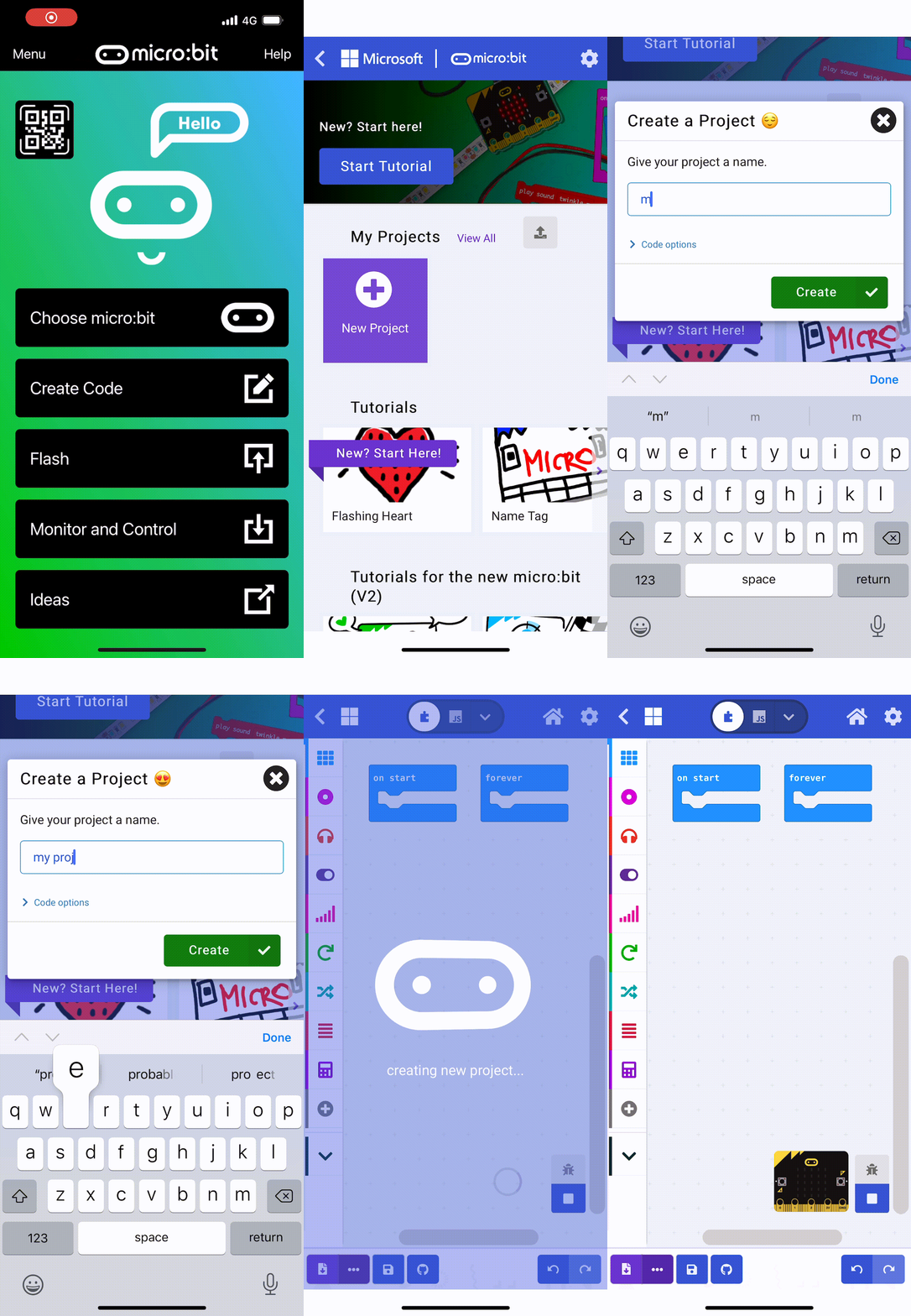
Install the micro:bit app on your iPad or tablet.
Open the app, tap 'Create code' and then create a new project.
We will need to remember the amount of steps we've taken so we will create a variable called 'steps'.
In the Variables toolbox, create a new variable by clicking the 'Make a Variable' button.
Once you click this button a box will appear asking what you want to call your variable. Give it a name that reminds you what you will be using it for. For example, if you wanted to keep track of your score in a game, you would create a variable called 'score'.
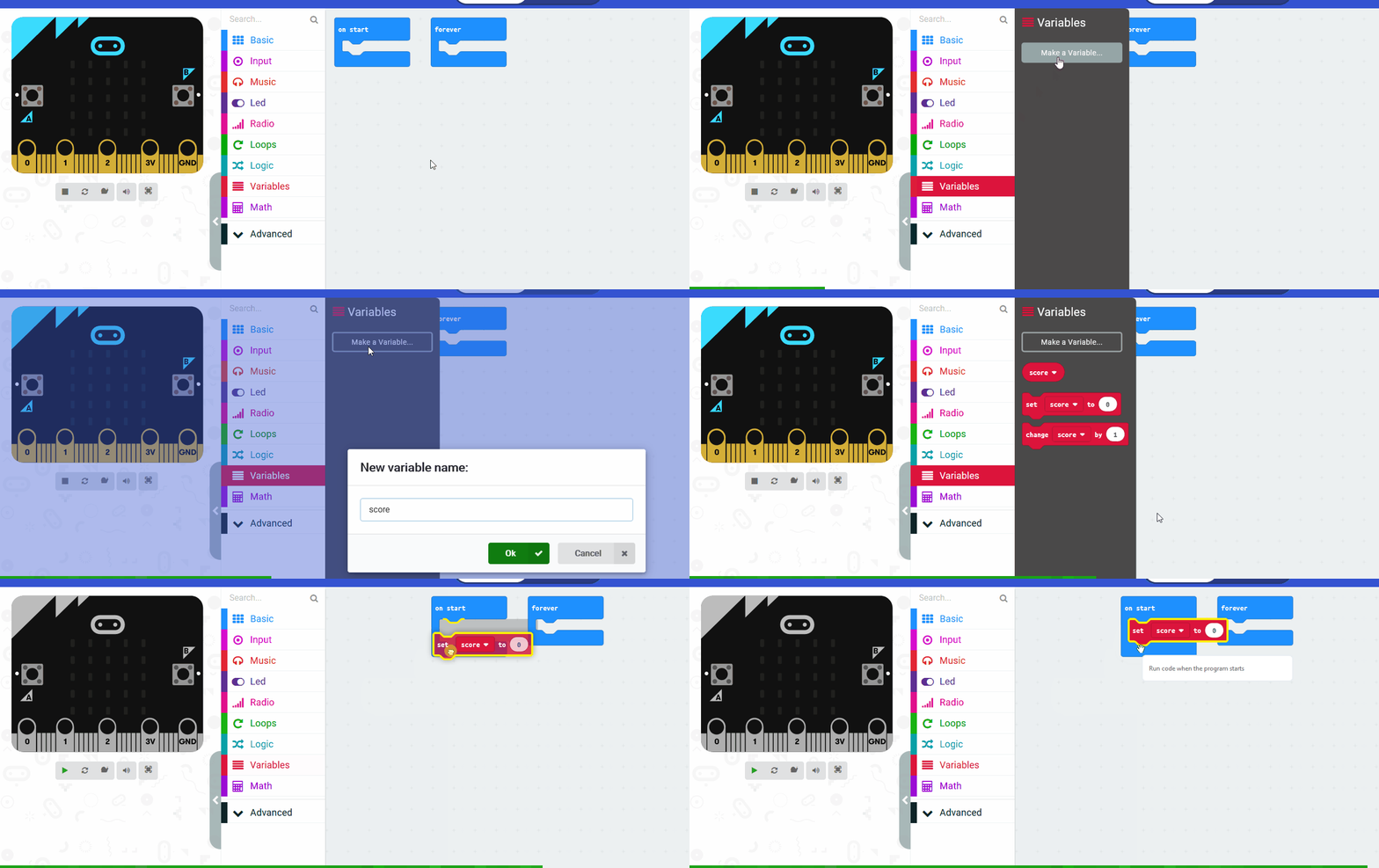
When we start the 'steps' should be 0. Add the following code:
let steps = 0
Our Microbits have a sensor in them called an accelerometer and this can detect when the Microbit has been shaken. We're going to use this to detect the 'shake' of our steps and each time we detect it, we will add 1 to our 'steps' variable so we can record the number of steps we take.
Add the following code:
input.onGesture(Gesture.Shake, function () {
    steps += 1
})
Unlock the full learning experience
You're previewing this lesson. Get full access to this lesson and hundreds more — each one ready to teach, with interactive activities, printable resources and pupil progress tracking built in.
This lesson is copyright of 123Learn.ie 2017 - 2025. Unauthorised use, copying or distribution is not allowed.