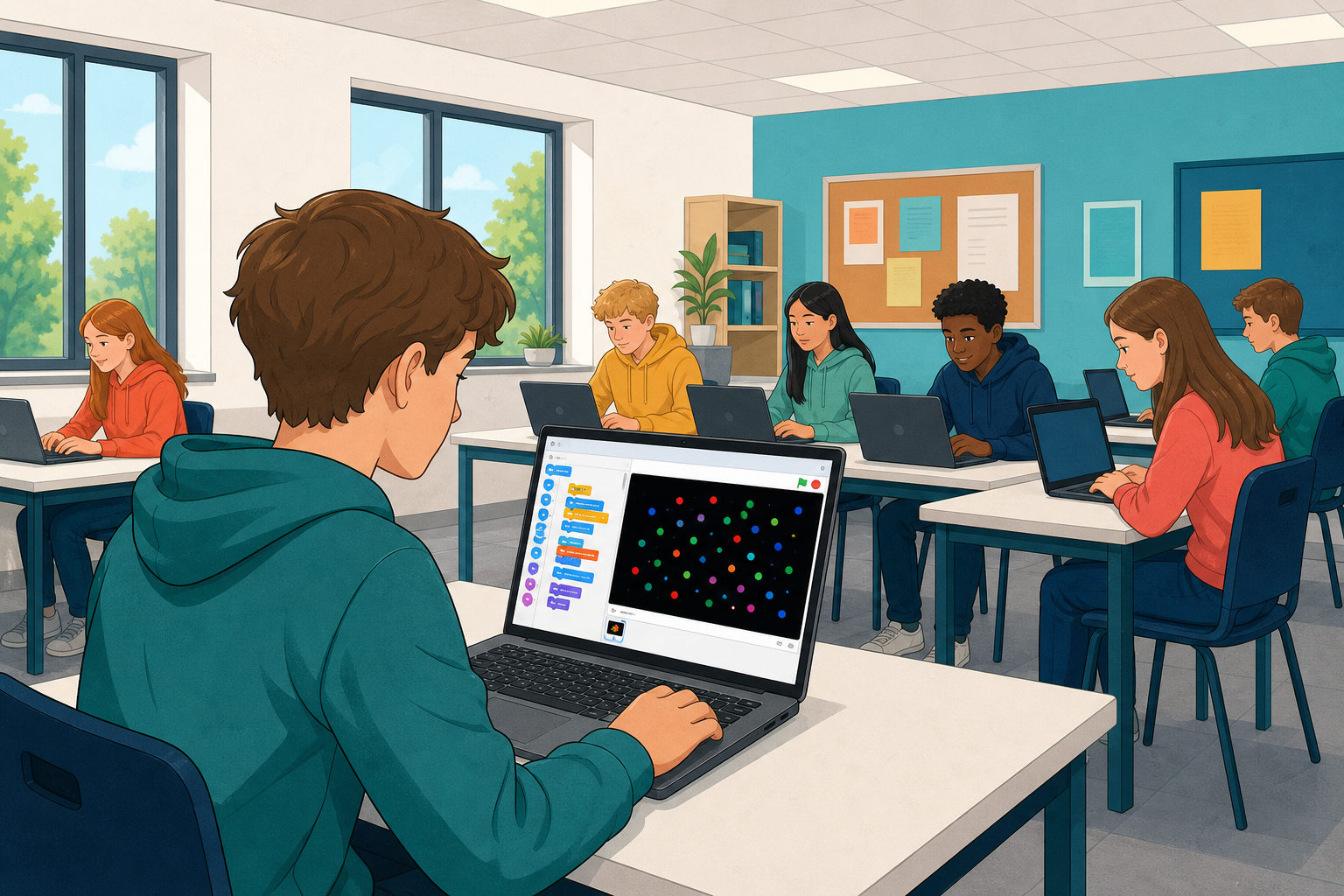
 You can already work in Scratch and make sprites appear and move. Today you will build Red v Green v Blue: a race of coloured dots that clone, move and infect each other.
Before you run the finished project, think: which colour do you expect to win, and why might that change if you run it again?
You will predict, build step by step, run, and fix as you go.
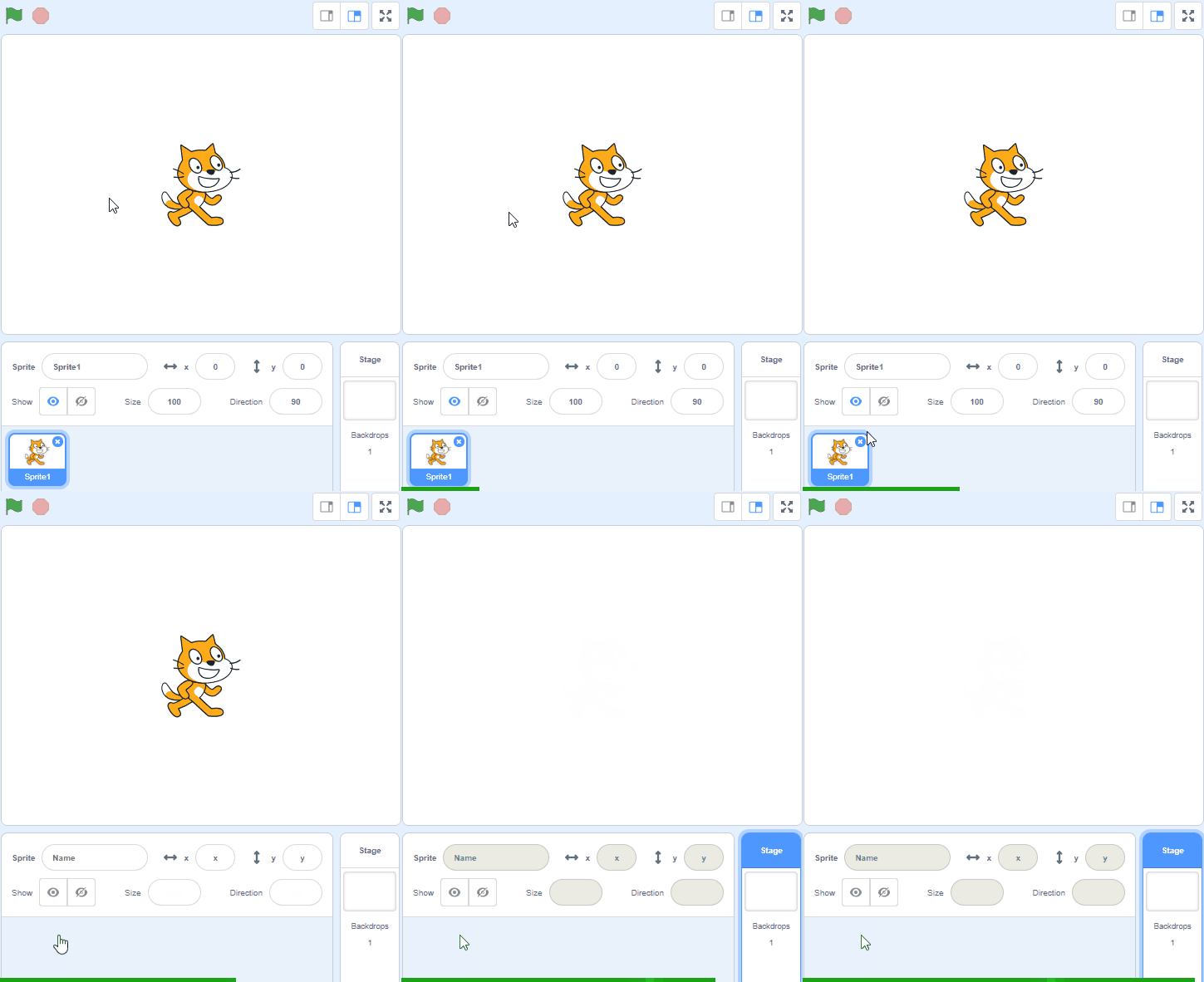
Create a new Scratch project and delete the cat sprite
Go to the Scratch website using the link below and click on the 'Create' link in the blue bar at the top.
By default, each new project starts with the cat sprite already added. To delete the cat click on the x in the blue circle beside the cat in the sprite list.
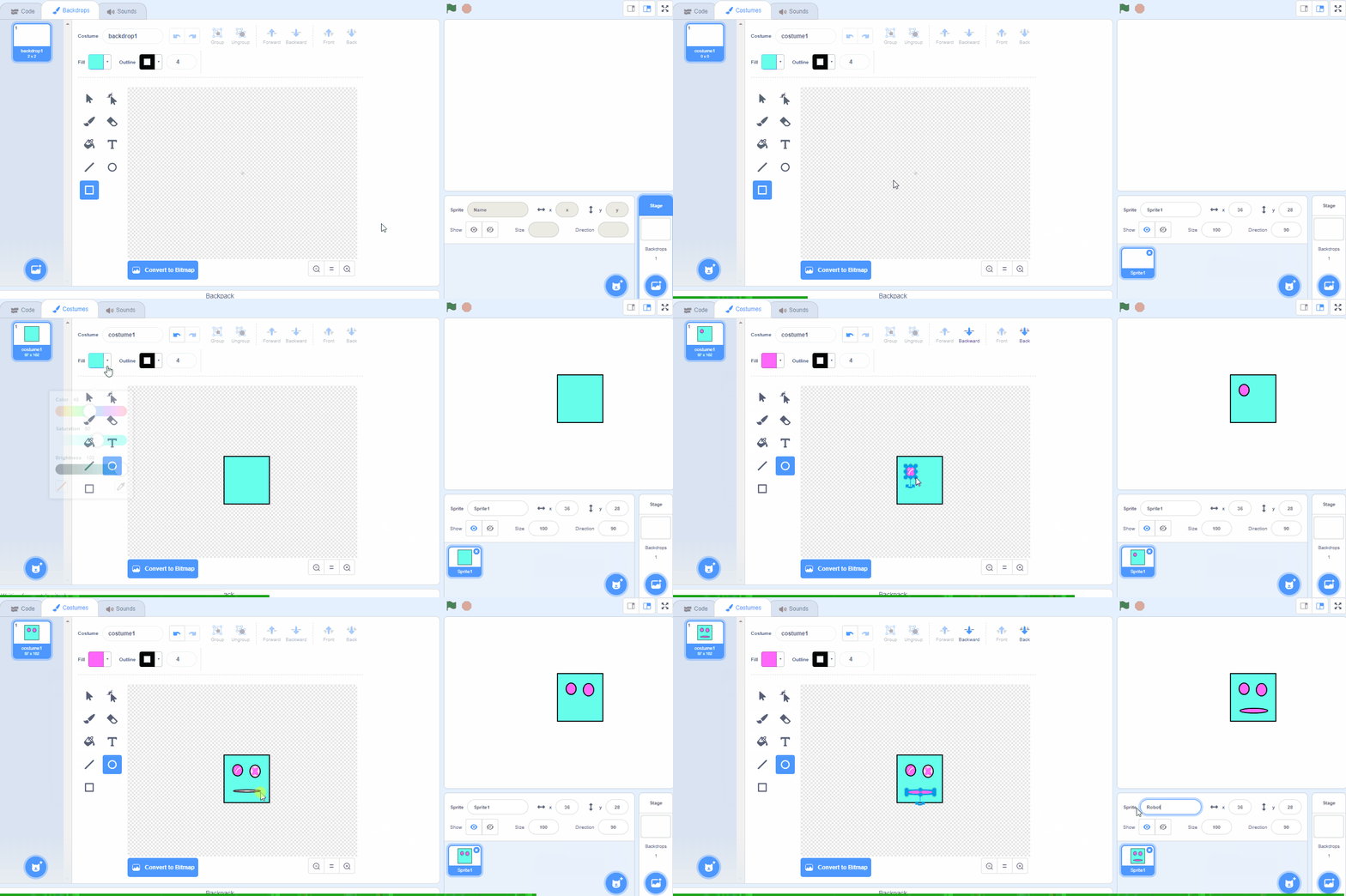
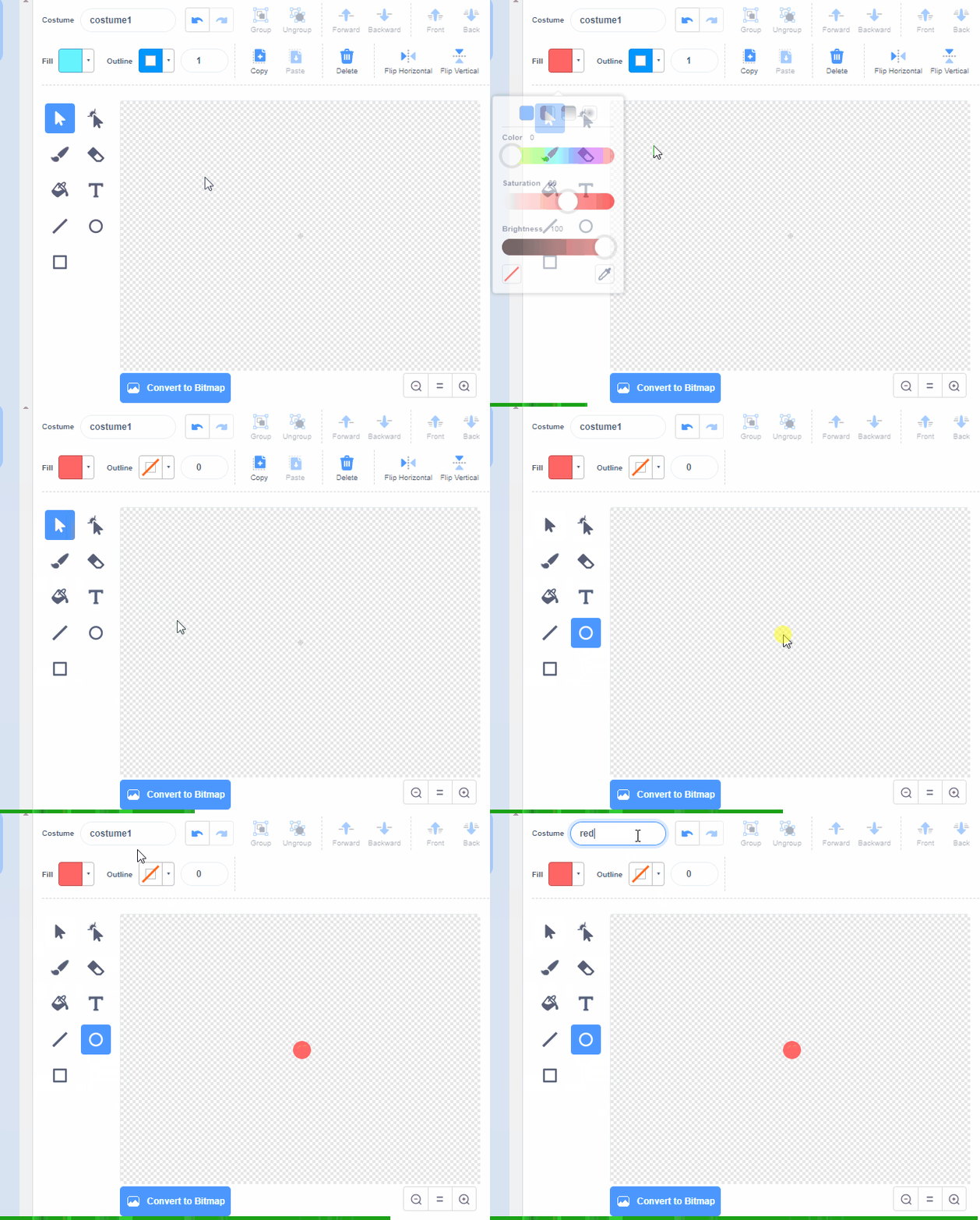
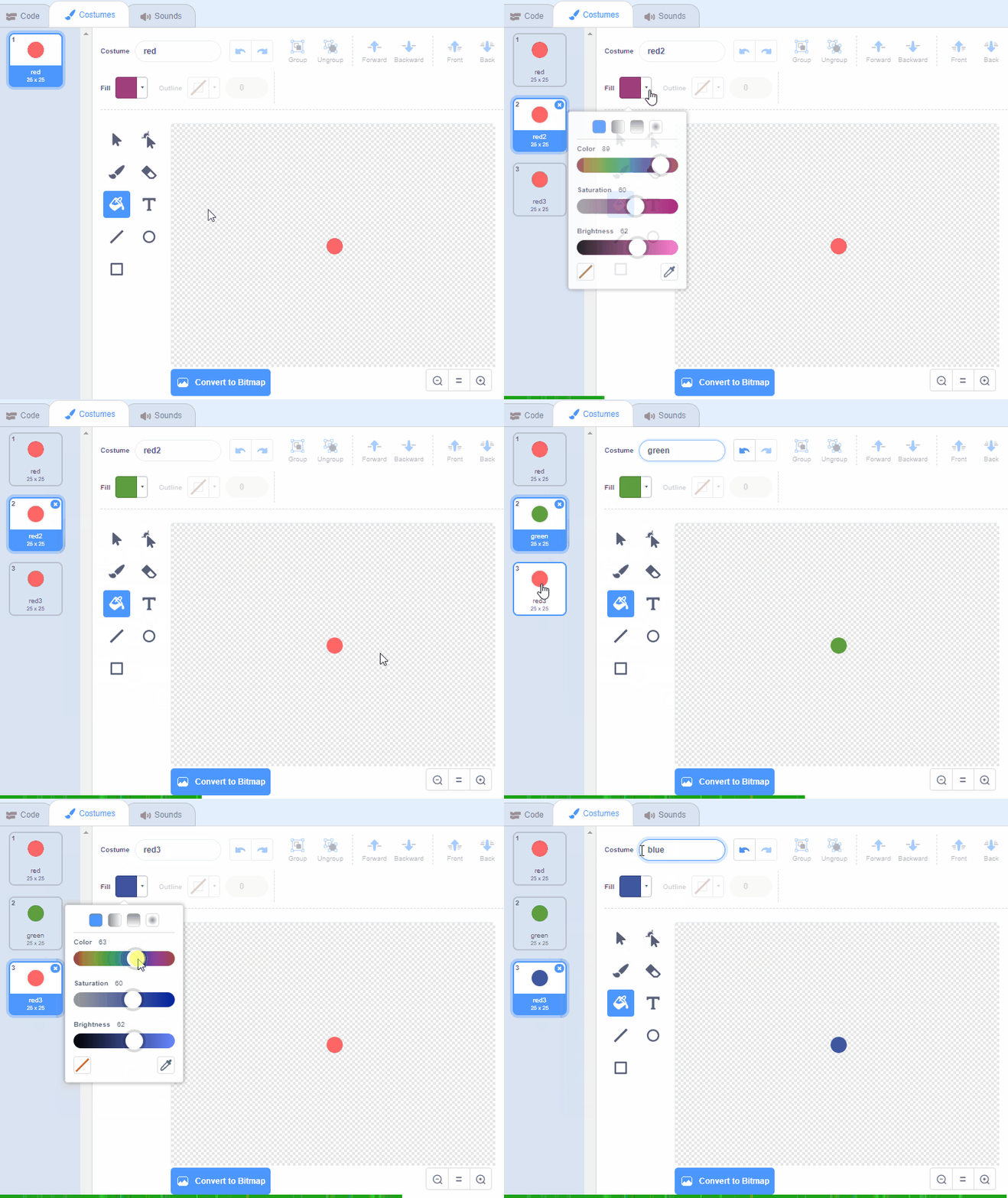
Create a new sprite by clicking on the paintbrush, this will open up the sprite editor. To draw draw a red circle, follow these steps:
- Choose a red colour in the Fill tool
- Turn off the Outline tool
- Select the Circle tool
- Draw a small circle in the middle of the editor (hold down the shift key while you draw it to make it a perfect circle)
- Name this costume 'red'
You can create your own sprites using the sprite editor. To create a new sprite put your mouse over the Choose a Sprite button and then click on the paintbrush.
This create a blank sprite and will open the sprite editor where you can use the tools to create your sprite. You can even create extra costumes for your sprite!
Tip: give your sprite a name so that you can recognise it in the code blocks.
We now need to create two more costumes for this sprite, a green circle and a blue circle.
Duplicate the red costume twice and then use the paint bucket tool to change the colour to blue and green.
Don't forget to name the costumes 'blue' and 'green'!
Now that we've created our sprite, let's start coding!
We're going to code 100 dots to appear so we need a variable to let us count to 100. Using the Variables toolbox create a 'count' variable.
Add the following code to your sprite to start 'count' at 0.
when green flag clicked
set [count v] to [0]
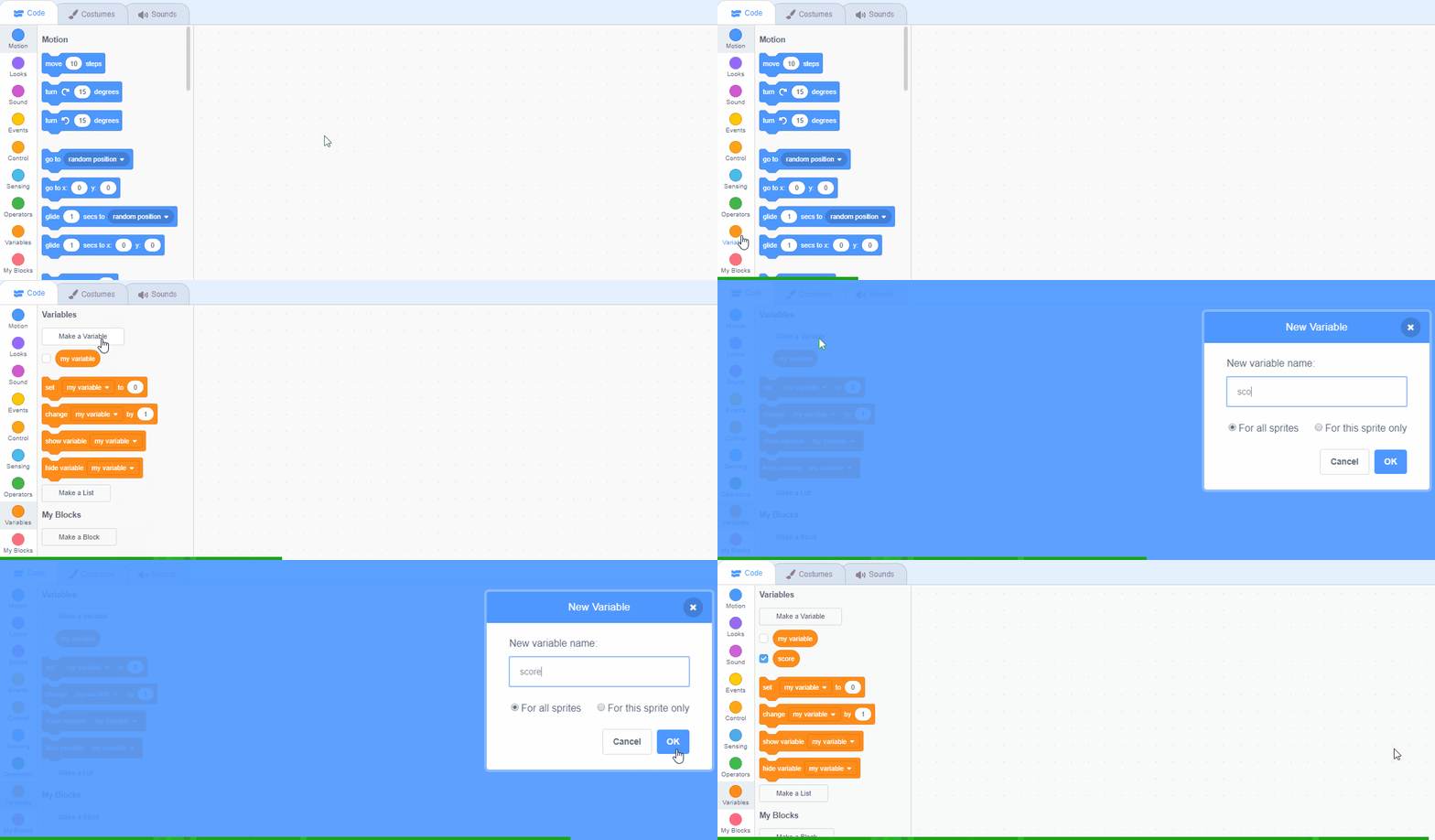
In the Variables palette, create a new variable by clicking the 'Make a Variable' button.
Once you click this button a box will appear asking what you want to call your variable. Give it a name that reminds you what you will be using it for. For example, if you wanted to keep track of your score in a game, you would create a variable called 'score'.
Unlock the full learning experience
You're previewing this lesson. Get full access to this lesson and hundreds more — each one ready to teach, with interactive activities, printable resources and pupil progress tracking built in.
This lesson is copyright of 123Learn.ie 2017 - 2025. Unauthorised use, copying or distribution is not allowed.
Scratch is developed by the Lifelong Kindergarten Group at the MIT Media Lab. It is available for free at https://scratch.mit.edu