Mathematics Scratch Game
Advanced
60 mins
Teacher/Student led
+290 XP

What you need:
Chromebook/Laptop/PC or iPad/Tablet

Space Shooter

Embark on an exciting journey to create your own 'Space Shooter' game. Start by setting up a new Scratch project, add a starry backdrop and create your game variables. Add a rocketship sprite and program it to follow your mouse pointer. Introduce a ball sprite for the rocketship to shoot and a balloon sprite for targets. Implement scoring and lives system, and finally, set up the game over conditions. Enjoy playing your own game and think about how you can improve it.
Teacher Class Feed

Load previous activity

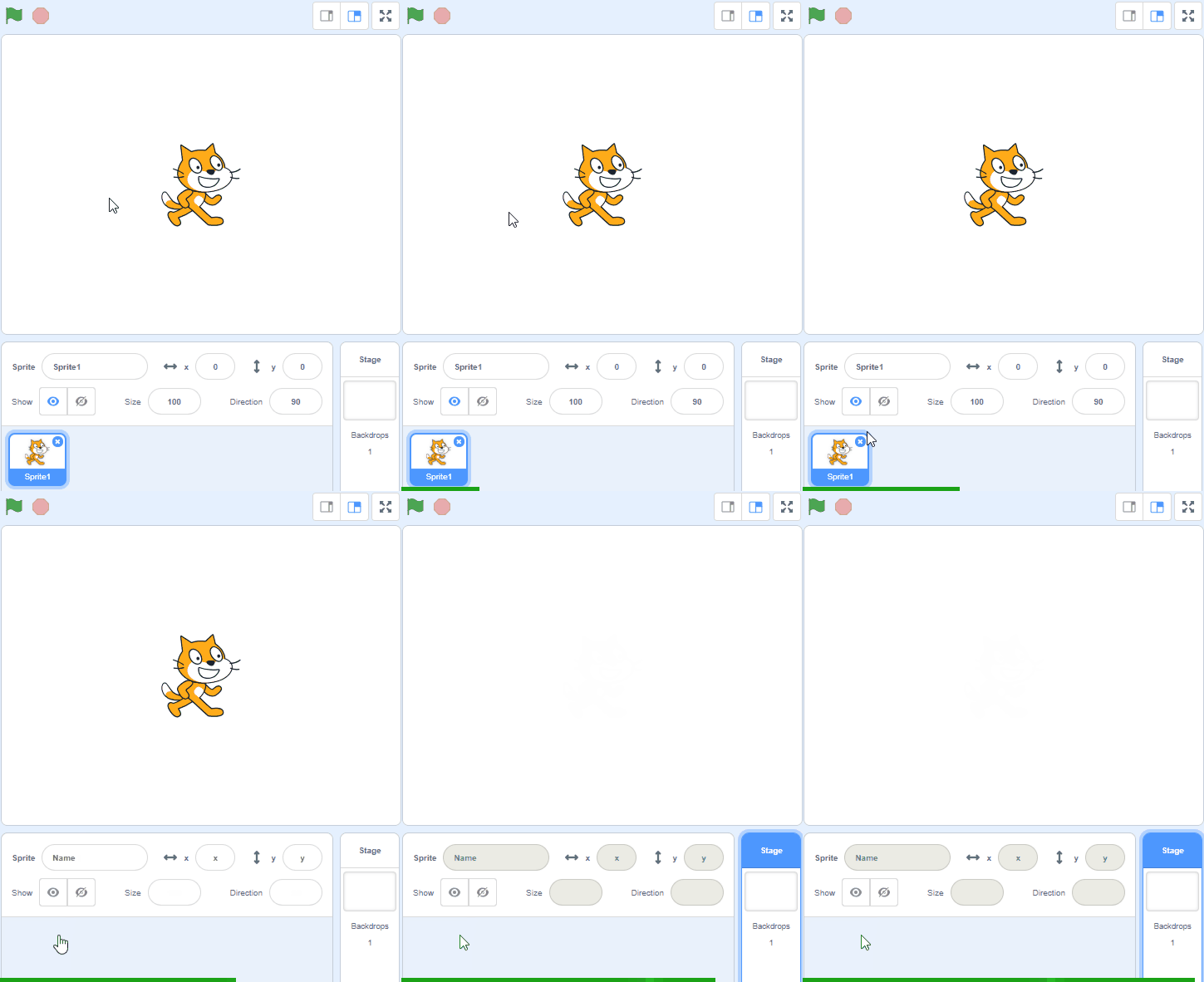
    1 - Create a new Scratch project

    Create a new Scratch project and delete the cat sprite.

    https://scratch.mit.edu

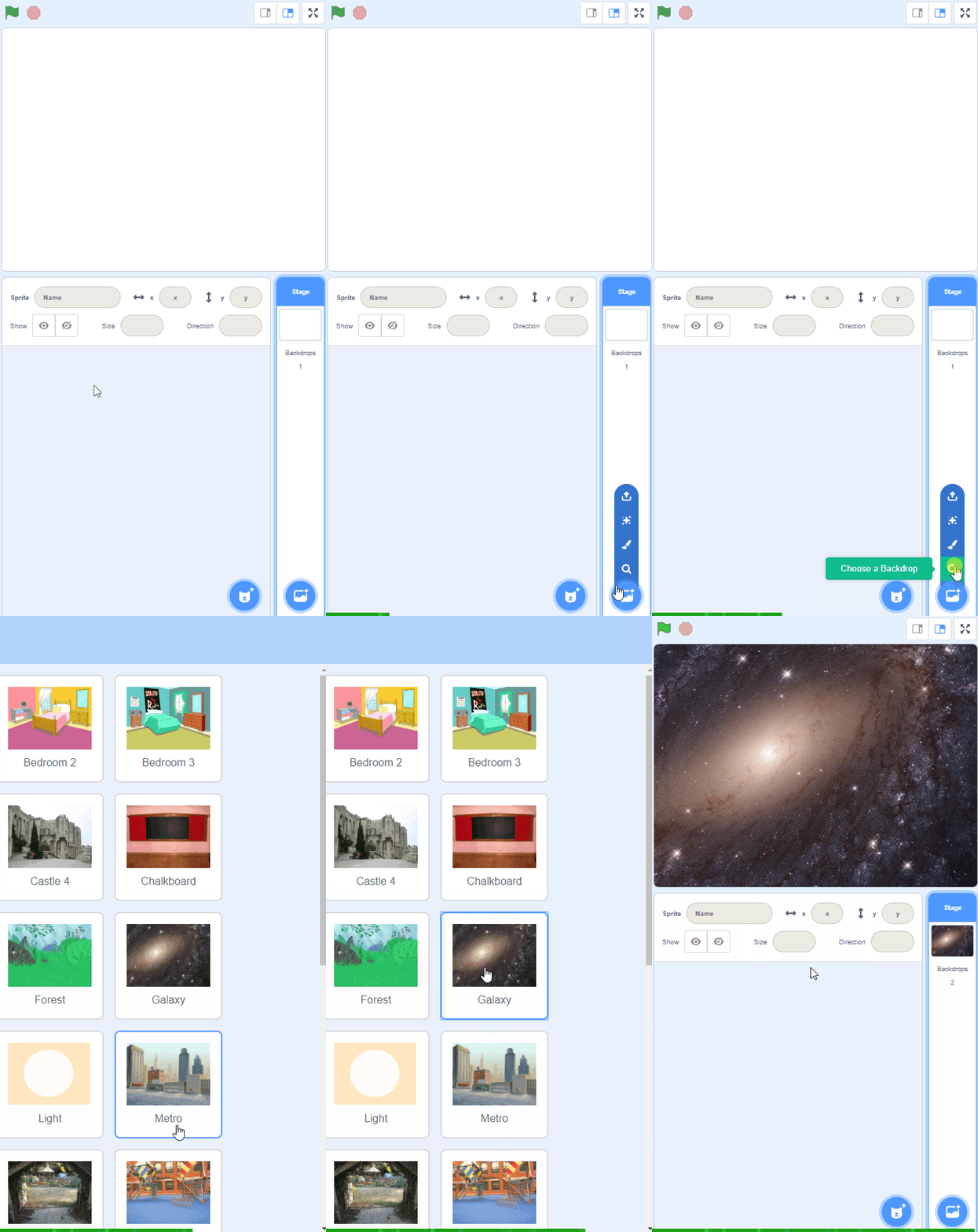
    2 - Add the Stars backdrop

    Open the backdrop library and add the Stars backdrop to your project.


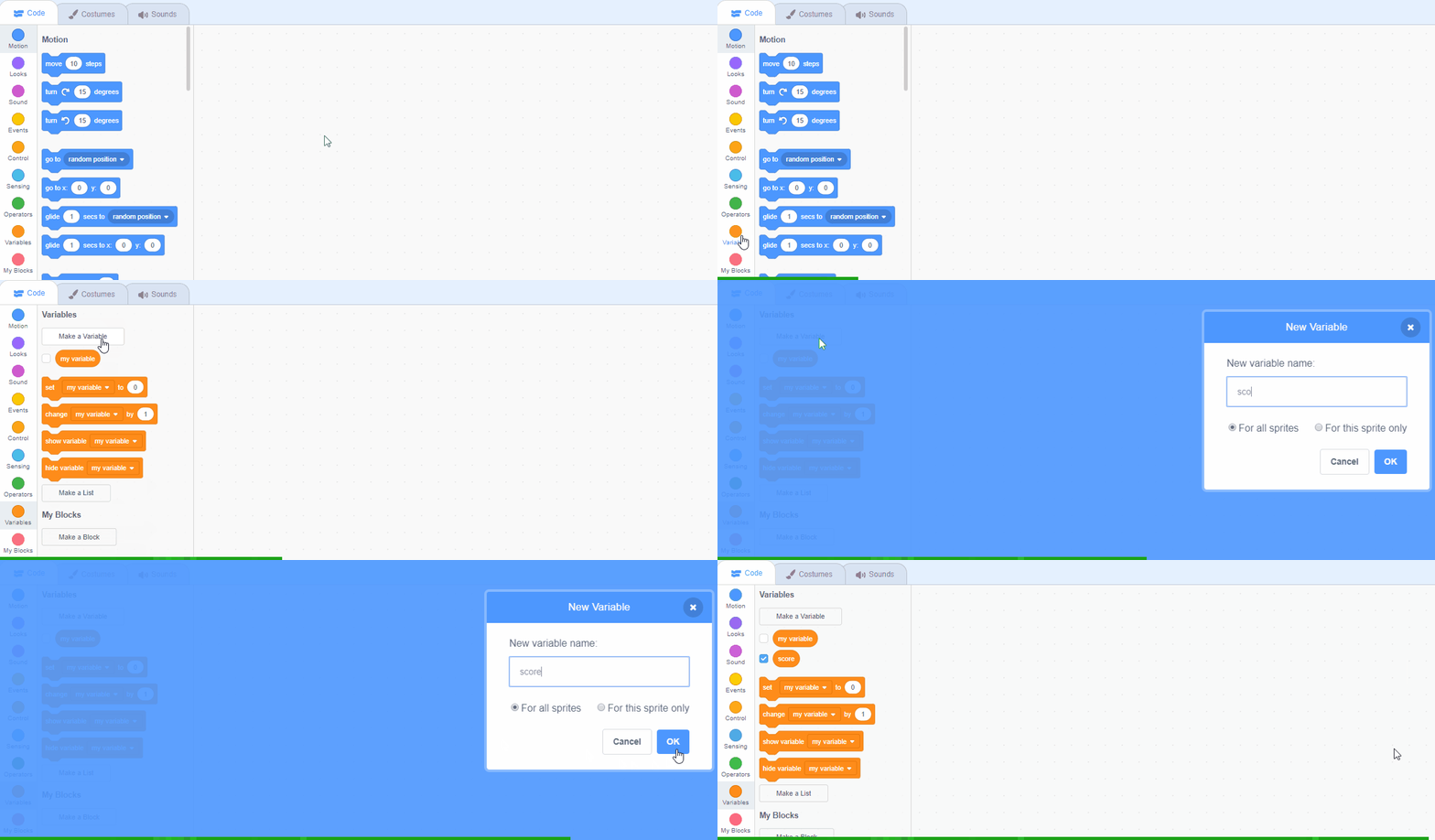
    3 - Create 'score' and 'lives' variables

    Each time you shoot a balloon you'll get a point and each time a balloon touches your rocketship you'll lose a life. To keep track of these we need to create two new variables, one called 'score' and one called 'lives'.

    In the Data palette, create two new variables by clicking the 'Make a Variable' button.

    1. 'score' this will store your score
    2. 'lives' this will store your lives

    When you create your first variable you will notice that new blocks for variables become available to use in the Data palette.

    4 - Setup the variables

    At the start of the game we should have 0 points and 3 lives. Add the following code to the stage to setup your variables for the start of the game.

    when green flag clicked set [score v] to (0) set [lives v] to (3)

    123learn · Online learning platform

    Unlock the full learning experience

    You're previewing this lesson. Get full access to this lesson and hundreds more — each one ready to teach, with interactive activities, printable resources and pupil progress tracking built in.

    Hundreds of curriculum-aligned lessons
    Interactive activities in every lesson
    Printable resources & progress tracking
    Copyright Notice
    This lesson is copyright of 123Learn.ie 2017 - 2026. Unauthorised use, copying or distribution is not allowed.

    Scratch is developed by the Lifelong Kindergarten Group at the MIT Media Lab. It is available for free at https://scratch.mit.edu
    🍪 Our website uses cookies to make your browsing experience better. By using our website you agree to our use of cookies. Learn more