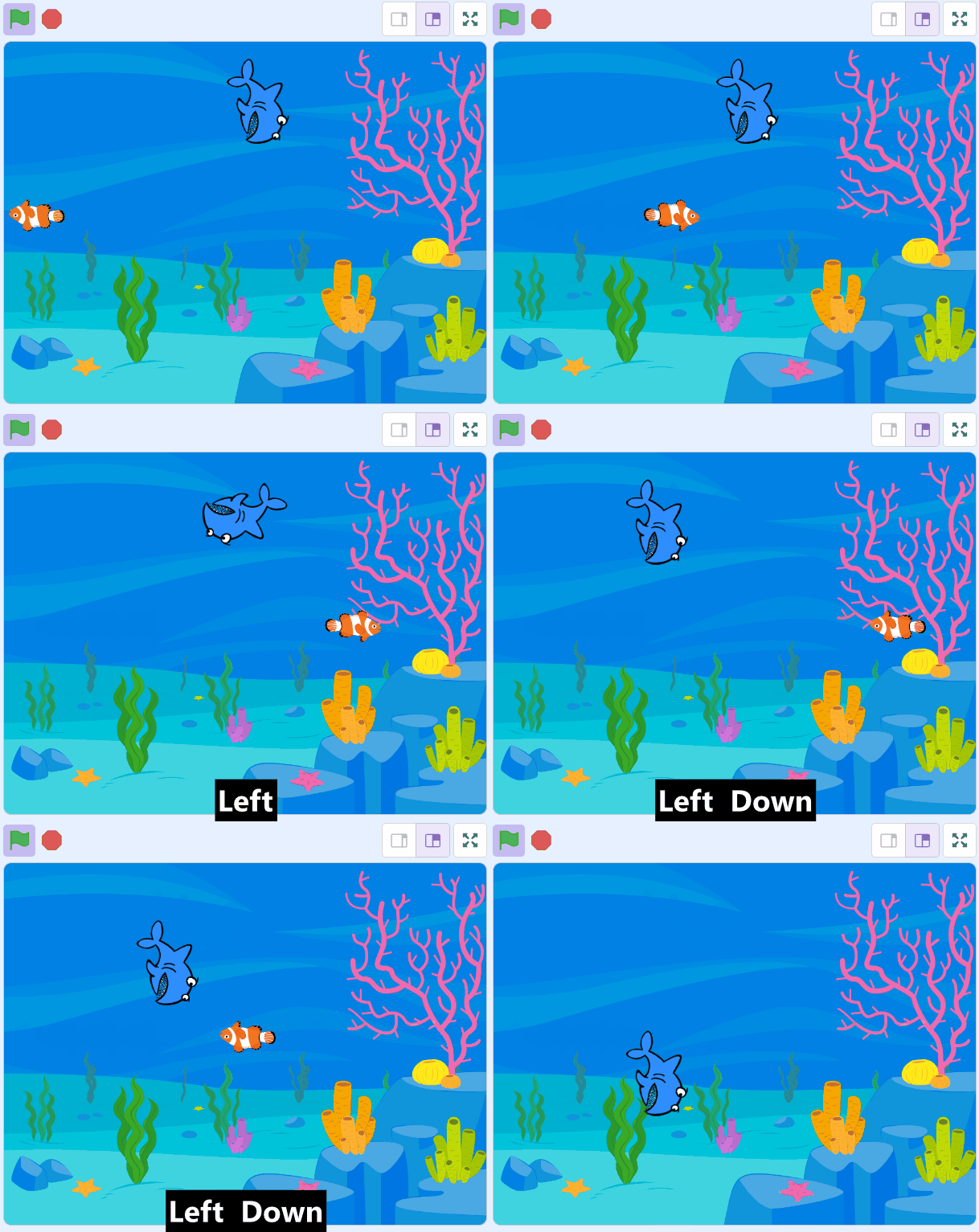
Welcome to the 'Shark Tank' lesson! In this fun and exciting lesson, you will learn how to create a game where a shark tries to catch sea creatures. You will learn how to control the shark using the arrow keys on your keyboard and make the sea creatures disappear when they are caught by the shark.
This lesson will teach you how to use the touching block to detect when one sprite collides with another. So, are you ready to dive into the underwater world of coding? Let's get started!
Let's start by creating a new Scratch project. First, go to the Scratch website by clicking here.
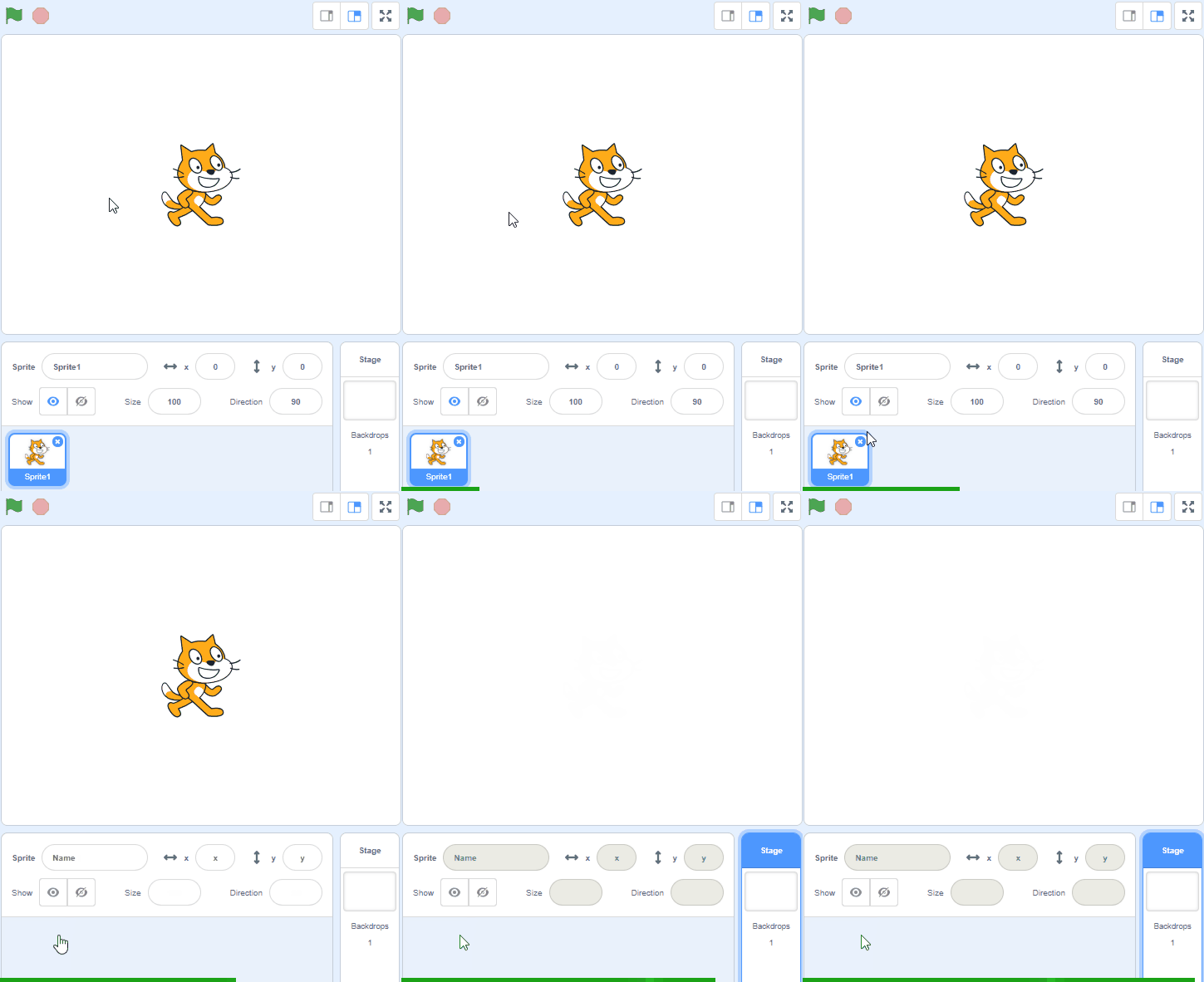
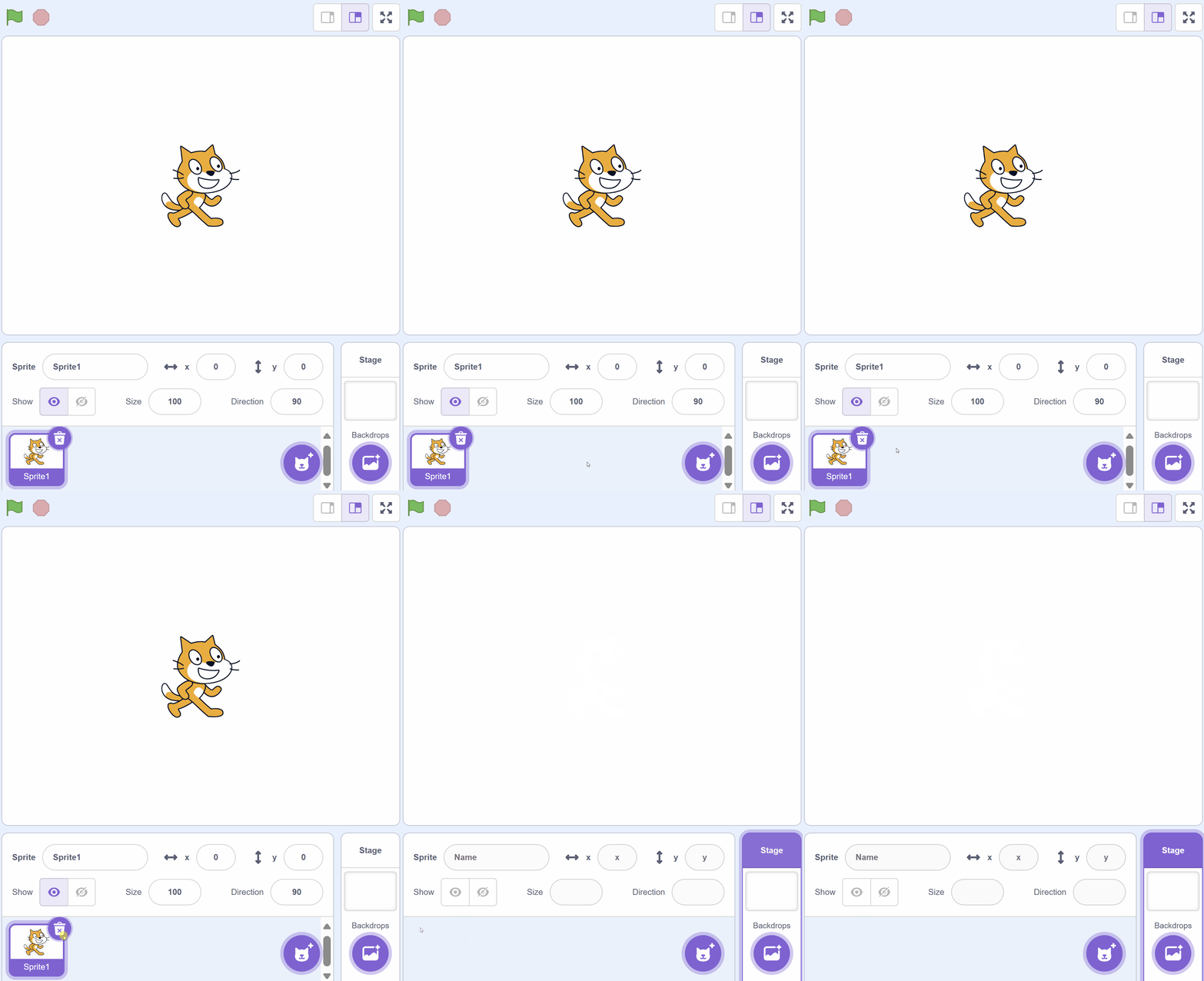
Once you're on the Scratch website, click on 'Create' to start a new project. You will see a cat sprite on the screen. We don't need the cat for our game, so let's remove it.
Go to the Scratch website using the link below and click on the 'Create' link in the blue bar at the top.
By default, each new project starts with the cat sprite already added. To delete the cat click on the x in the blue circle beside the cat in the sprite list.
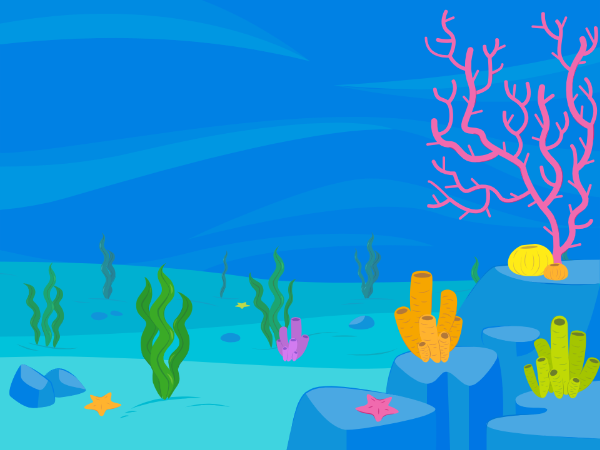
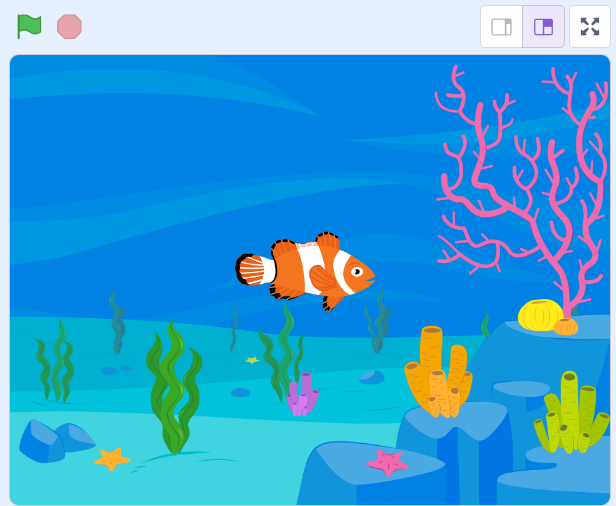
Now, let's make our game look like it's under the sea. We will add an underwater backdrop to our game. Click on the 'Choose a Backdrop' button at the bottom-right of the screen. This will open the backdrop library. Scroll down until you find the Underwater 1 backdrop and click on it. You will see that the stage now looks like the bottom of the ocean.
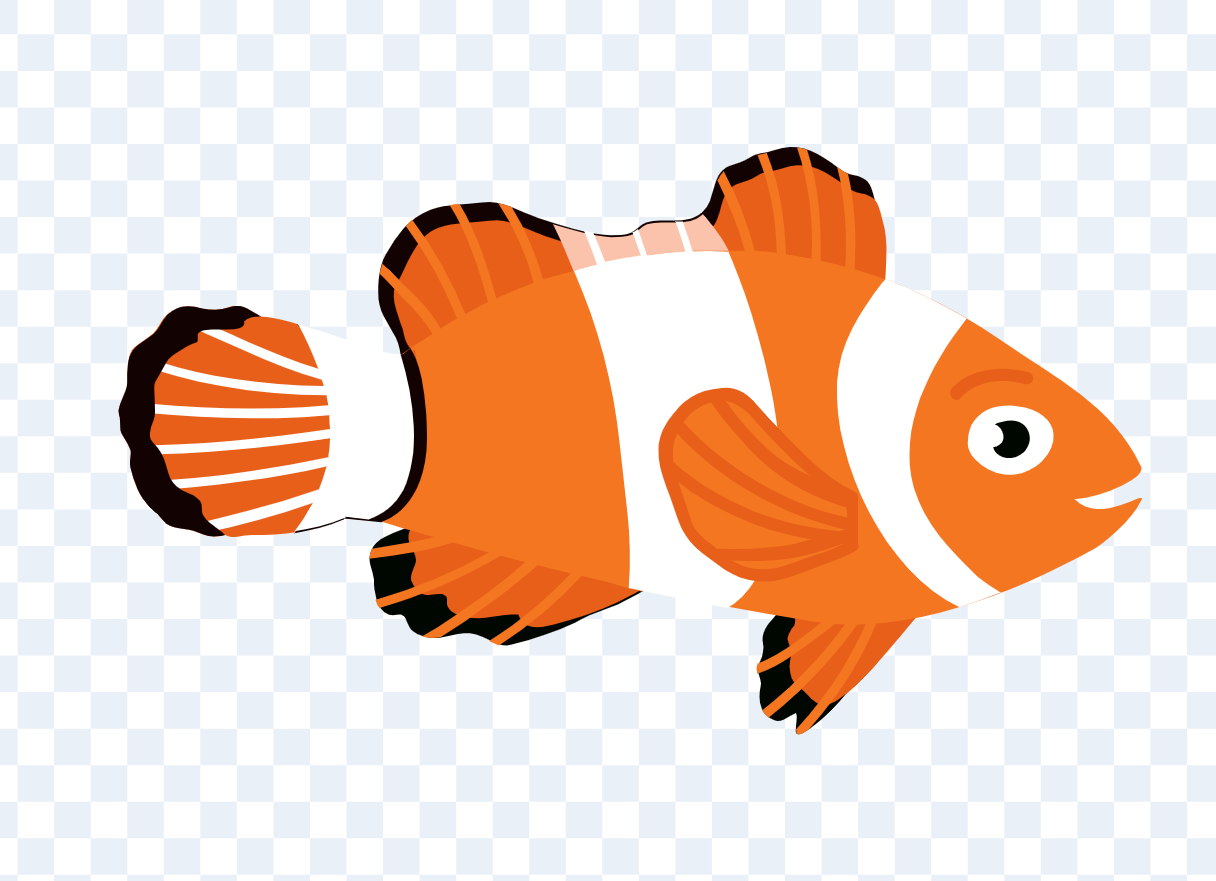
Now, let's add a fish to our underwater scene. Click on the 'Choose a Sprite' button at the bottom-right of the screen. This will open the sprite library. Scroll down until you find the Fish sprite and click on it. You will see the fish appear on the stage.
Click and drag the fish to the middle of the stage area.
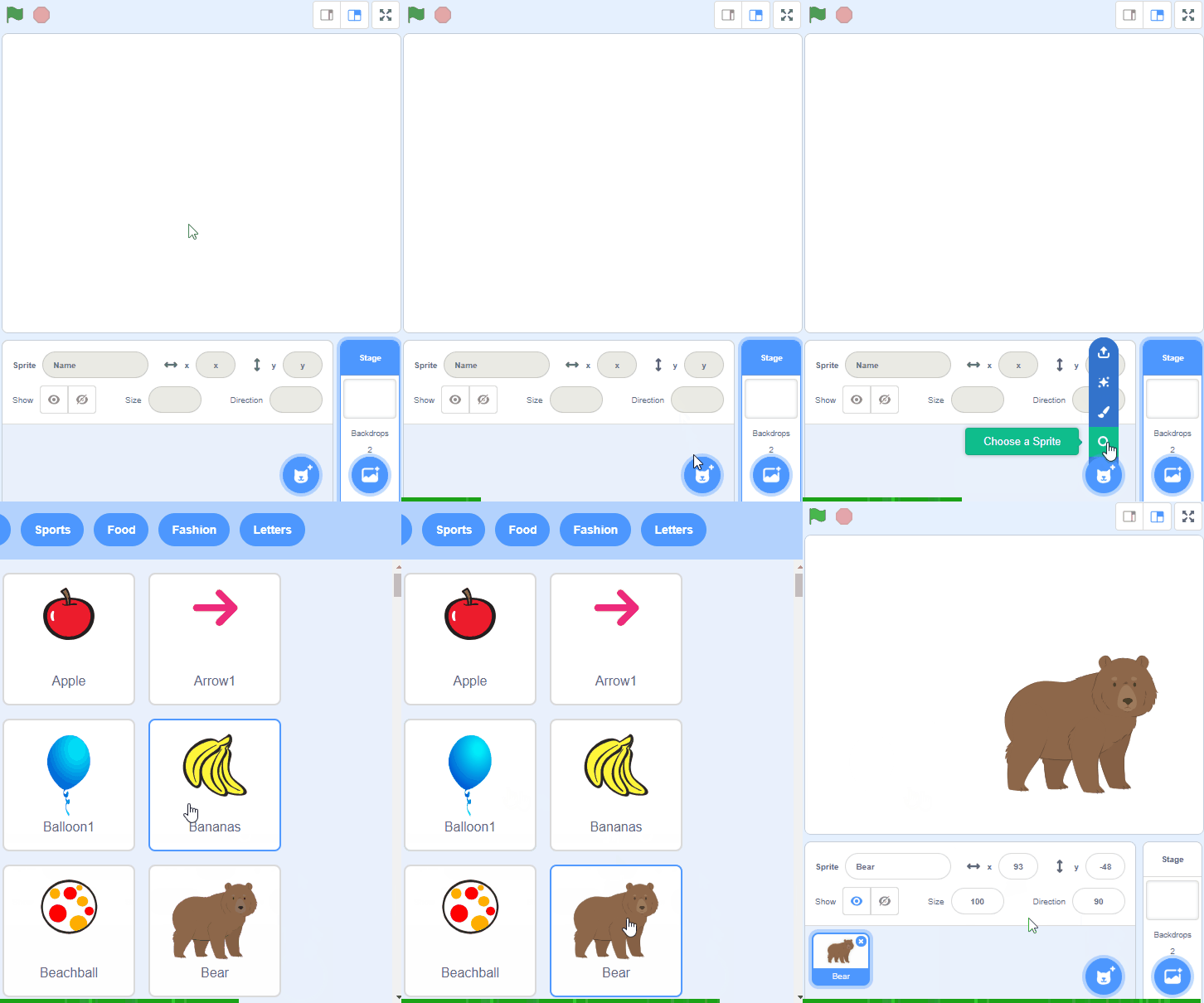
To add a sprite from the sprite library follow these steps:
You can use search box or the filter links (Animals, People, Fantasy etc) to locate your sprite.
You're previewing this lesson. Get full access to this lesson and hundreds more — each one ready to teach, with interactive activities, printable resources and pupil progress tracking built in.