1 - Introduction ~5 mins
Welcome
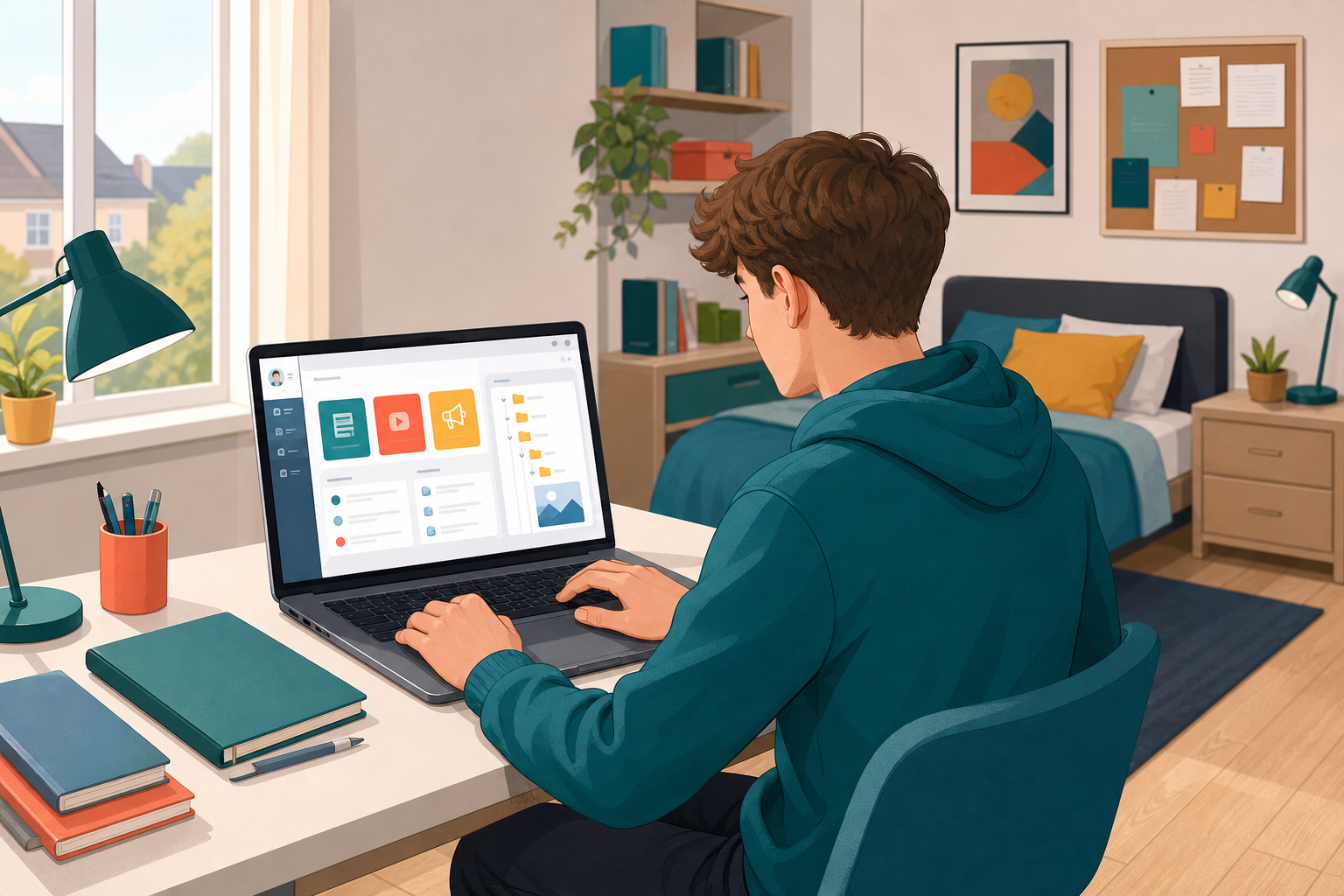 Most of your school work now lives online: assignments, handouts, announcements, and due dates. That space is called a virtual learning environment (VLE). Today you will tour the system your school actually uses (Google Classroom, Microsoft Teams for Education, or another school portal), find real class materials, and connect one useful item to your Project Portfolio so coursework evidence is not scattered across inboxes and chat threads.
Your {{code:Project_Portfolio}} folder in school Drive or OneDrive is where you keep the work that proves what you have done on this course. Today you will put one clear VLE screenshot into {{code:09_specialism/sm4/}} so that the brief you were given is saved somewhere you can find it again.
If your school’s VLE still feels like a maze, that is exactly why we are doing this once properly. After today you should know where work is set and where your evidence lives.
What you will be able to do after today
- Find your way around the school VLE, whether it is Google Classroom, Teams for Education, or another portal
- Find assignments, resources, and announcements
- Save something from the VLE into your Project Portfolio so it is there when you need it
Warm-up
Think quietly: where do you usually first hear about a new assignment or deadline (class chat, email, a teacher saying it once, or the school VLE)? What goes wrong when that place is not the same place you store finished work?
2 - Key Concepts ~6 mins
Your teacher will write the name of your school VLE on the board. Keep three ideas in mind:
- Where work is set — the VLE class hub
- Where files open — often Drive or OneDrive when a handout launches
- Where evidence is filed — {{code:Project_Portfolio/09_specialism/sm4/}}
Quick match (with your teacher)
In pairs, take the four terms below — VLE, Assignment, Resource, Announcement — and, without looking at the table, say to each other which one matches each of these four descriptions: the whole online space your school uses for classes; a set task with instructions and often a due date; a file or link shared for you to use; a message to the class that is not a task to hand up. Be ready to say why you chose each match. Your teacher will read the answers aloud (about two minutes).
| Concept | Why it matters | Example |
|---|---|---|
| Virtual learning environment (VLE) — the school’s online space for classes, work, files, and messages | If you only rely on memory or group chat, deadlines and files go missing when you need them for coursework | Your LCA ICT class stream lists this week’s task and a recent handout in one place |
| Assignment — a set task with instructions, often a due date and a submit button | This is where marks, feedback, and deadlines live; a clear screenshot of the brief protects you if the post moves | Work Experience log due Friday with a Turn in or Hand in button |
| Resource — a file, link, or material shared for you to use (notes, slides, checklist) | Resources are easy to open once and lose; saving a copy into the portfolio keeps the source beside your work | A PDF of Citizens Information notes for a digital safety topic saved into {{code:sm4/}} |
| Announcement — a class or year message that is not always a graded task | Announcements carry timetable changes, room moves, and deadline reminders you will not see inside a single document | Friday’s ICT room change posted on the class feed, not as a graded task |
Worked example: what a useful VLE screenshot shows
Imagine your teacher set a Work Experience log due Friday (or a Vocational Preparation task, or this week’s ICT handout). A strong screenshot for your portfolio shows: the class name, the item title, the due date if shown, and enough of the instruction text to prove what was asked. A weak screenshot shows only a cropped corner of the page with no title or date. You will aim for the strong version, then file it as {{code:sm4_vle_screenshot.png}} inside {{code:Project_Portfolio/09_specialism/sm4/}}.
Google Classroom and Microsoft Teams for Education are common VLEs you may meet in Irish schools, alongside other school portals. Both often open handouts in Google Workspace or Microsoft 365 apps. Your teacher will show the live labels on your system — you do not need to memorise a second product today.
3 - Step-by-step Task ~15 mins
With your teacher guiding on the classroom screen, log into the school VLE, open your class, find an assignment or resource, and capture a clear screenshot. First login often fails because a personal Gmail or Microsoft account is still signed in — that is common, not a disaster. Switch account or use a private window and try again.
Open any real assignment or resource from this ICT class or another current LCA class. If your teacher has posted the brief for your current class project, use that; otherwise use this week’s homework post, a Work Experience item, or a Vocational Preparation handout. Your teacher will confirm on the board which class to use.
Platform tabs below cover Windows, Mac, and Chromebook for browser and screenshot steps. Use the system your school actually runs.
4 - Common Issues ~4 mins
Common Issues
| Issue | Solution |
|---|---|
| I cannot sign in or the page loops back to login | Check you are using your school account (not a personal Gmail or Microsoft account). Try a private/incognito window, or a different browser. Ask your teacher to confirm your account is on the class list. First-time loops are common — switch account and try once more before panicking. |
| I am signed in but I cannot see this ICT class | You may be in the wrong account or the teacher has not added you yet. Switch account if needed, then refresh. Use another current LCA class for today’s screenshot if your teacher agrees, and note the class name so the evidence still makes sense. |
| I cannot find Assignments or Classwork | Menus differ: Google Classroom uses Classwork or the stream; Teams uses Assignments or Files inside the class team; other portals use Coursework or Resources. Follow the live labels on the teacher’s screen rather than memorising a different school’s layout. |
| My screenshot is blank, tiny, or missing the title | Open the assignment fully first, then capture. Include class name, title, and due date. On Windows paste from the snip into an image editor before saving. On Mac check Desktop. On Chromebook check the Screenshots folder in Files. If your first snip is useless, delete it and take another; you only need one clear image. |
| The assignment opened a Doc or Word file and I am worried about editing the original | Do not type into the teacher’s master copy unless the task says you have your own copy. For portfolio evidence, screenshot the brief or make a copy into your own Drive/OneDrive, then place the evidence file in Project_Portfolio/09_specialism/sm4/. |
I cannot find Project_Portfolio or the sm4 folder | Open school Drive or OneDrive and look for Project_Portfolio, then 09_specialism. If sm4 is missing, create that folder now (your teacher will show the path on the board). New or transferred accounts often need the folder built once. |
5 - Independent Practice ~20 mins
Independent Practice
- {{code:sm4_vle_screenshot.png}} is saved inside {{code:Project_Portfolio/09_specialism/sm4/}}, which is the file your teacher will check
- The screenshot clearly shows the class context plus the item title (and due date if the VLE displays one)
- The item you chose is from a real current LCA class, not a random empty page
- You can point to where assignments, resources, and announcements live in your school VLE without help
Unlock the full learning experience
You're previewing this lesson. Get full access to this lesson and hundreds more — each one ready to teach, with interactive activities, printable resources and pupil progress tracking built in.
This lesson is copyright of 123Learn.ie 2017 - 2025. Unauthorised use, copying or distribution is not allowed.