1 - Introduction ~5 mins
Welcome
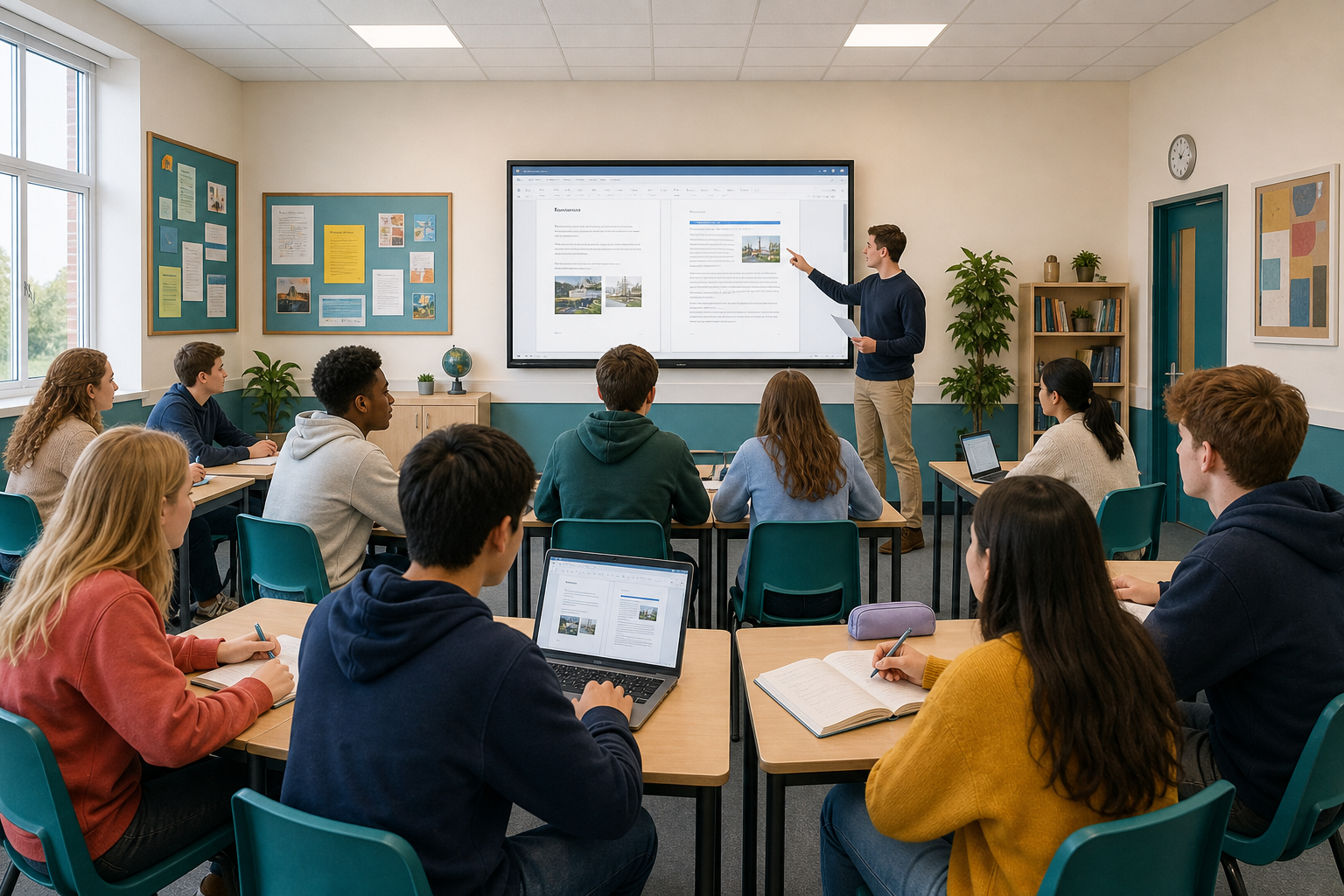 A long report without page numbers or a contents list forces the reader to guess. Today you add the last finishing touches to the multi-section table document you have been building for your own project ({{code:sm1_doc3_table_document.docx}}) so that it looks and behaves like a document you would hand to a supervisor or a customer.
You add two finishing pieces: page numbers that stay correct when pages move, and a linked table of contents (often shortened to TOC) built from Heading 1 and Heading 2 styles, so a reader can click a section title and jump straight to it.
By the end of this lesson, you will be able to:
- Add clear page numbers to a multi-page document
- Insert a linked table of contents built from heading styles
- Update the table of contents after you rename or move a section, so titles and page numbers stay accurate
Warm-up
Think for ten seconds: would a reader trust your multi-section project document faster with only a tidy cover page, or with a contents list they can click? You will then see a finished sample on the classroom screen, and one contents entry clicked so you can watch the reader land on that section rather than only hearing it described.
2 - Key Concepts ~6 mins
These three ideas turn a long project document into something a supervisor, examiner, or community contact can navigate without hunting.
| Concept | Why it matters | Example |
|---|---|---|
| Pagination — page numbers that the software keeps up to date as content grows or shrinks | Readers and assessors cite "page 4"; without numbers, feedback and printing fall apart | A Work Experience report printed for your supervisor with 1, 2, 3… in the footer so they can say "look at page 4" |
| Linked table of contents (TOC) — an auto-built list from Heading 1 and Heading 2 that jumps to the right place when clicked | Saves the reader scrolling and proves your structure is intentional. Bold typed by hand does not feed the list | Click "Contact list" in the TOC and land on that table in your enterprise pack |
| Update field / refresh TOC — after you rename a heading or move a section, you refresh the TOC so titles and page numbers match reality | An out-of-date contents list looks unfinished and confuses anyone marking the document | You rename "Budget" to "Cost summary", then update the TOC so the new title appears |
3 - Step-by-step Task ~16 mins
Follow the steps for your word processor on your live project file {{code:sm1_doc3_table_document.docx}} (or {{code:sm1_doc3_practice_toc}} if you do not have the project file yet).
There are three things to finish now:
- First, apply Heading 1 and Heading 2 styles to the real section titles in your document.
- Then, add a Contents label near the start and insert the linked contents list under it.
- Last, put clear Arabic page numbers (1, 2, 3…) in the footer.
Renaming a heading, updating the contents list and saving under the new filename come later, so do not rename the file to {{code:sm1_doc3_table_document_v4}} yet.
If you open {{code:sm1_doc3_practice_toc}}: three Heading 1 titles (Introduction, Schedule, Contacts) are already applied, so do not invent new section titles now. You will change one of those titles to your own wording later on, and you will still save the finished copy into {{code:09_specialism/sm1}} under the agreed v4 filename.
4 - Common Issues ~4 mins
Common Issues
| Issue | Solution |
|---|---|
| My table of contents is empty or only shows "Contents" | Select each section title and apply Heading 1 or Heading 2 from the styles menu. Bold or a bigger font size alone does not feed the TOC. Then update or refresh the TOC. |
| "Contents" appears as a line inside the TOC list | Select the Contents label above the list and change it to Title or Normal (not Heading 1 or Heading 2). Update or refresh the TOC so the label drops out of the auto list. |
| The TOC links do not jump, or page numbers look wrong after I moved a section | Click inside the TOC and use Update table (Word for the web, on the References tools for the field) or the refresh icon (Google Docs). Do not retype the list by hand. |
| Page numbers are missing on some pages, or the first page looks odd | Re-open Insert, Page numbers and confirm a footer style is applied to all pages. Standard numbers on every page are enough for today; different first page is optional. |
5 - Independent Practice ~19 mins
Independent Practice
- Check the success criteria below. Finish any missing piece from the guided block (heading styles, linked TOC near the start, Arabic page numbers). Do not hand-type a contents list. Fix styles, then update or refresh.
- Rename one Heading 1 in the body to a clearly different title (at least two words different). For example change {{code:Budget}} to {{code:Cost summary}}, or on the practice file change {{code:Schedule}} to {{code:Weekly plan}}. Do not edit the TOC text by hand.
- Update or refresh the TOC so the new title and page numbers match. In Word for the web, click inside the TOC and use Update table. In Google Docs, click the TOC then the refresh icon.
- Prefer Rename so only one file remains. Save the document exactly as {{code:sm1_doc3_table_document_v4}} in {{code:09_specialism/sm1}}. If you must make a copy instead, put the copy in that same sm1 folder, rename it to the exact v4 name, and leave or remove the old name so your teacher can see the v4 file clearly. Practice-file users: make a copy into {{code:09_specialism/sm1}} first if needed, then rename to the exact v4 filename.
- Show your teacher the path {{code:09_specialism/sm1}} / {{code:sm1_doc3_table_document_v4}} before reflection.
- Body pages show clear Arabic page numbers in the footer
- A linked table of contents lists at least three real project sections from Heading 1 / Heading 2 (and the word Contents is not listed as a TOC entry)
- After one clearly different heading rename, the TOC was updated and matches the new structure
- The file is saved as exactly {{code:sm1_doc3_table_document_v4}} inside {{code:Project_Portfolio}} / {{code:09_specialism/sm1}}
Unlock the full learning experience
You're previewing this lesson. Get full access to this lesson and hundreds more — each one ready to teach, with interactive activities, printable resources and pupil progress tracking built in.
This lesson is copyright of 123Learn.ie 2017 - 2025. Unauthorised use, copying or distribution is not allowed.