1 - Introduction ~5 mins
Welcome
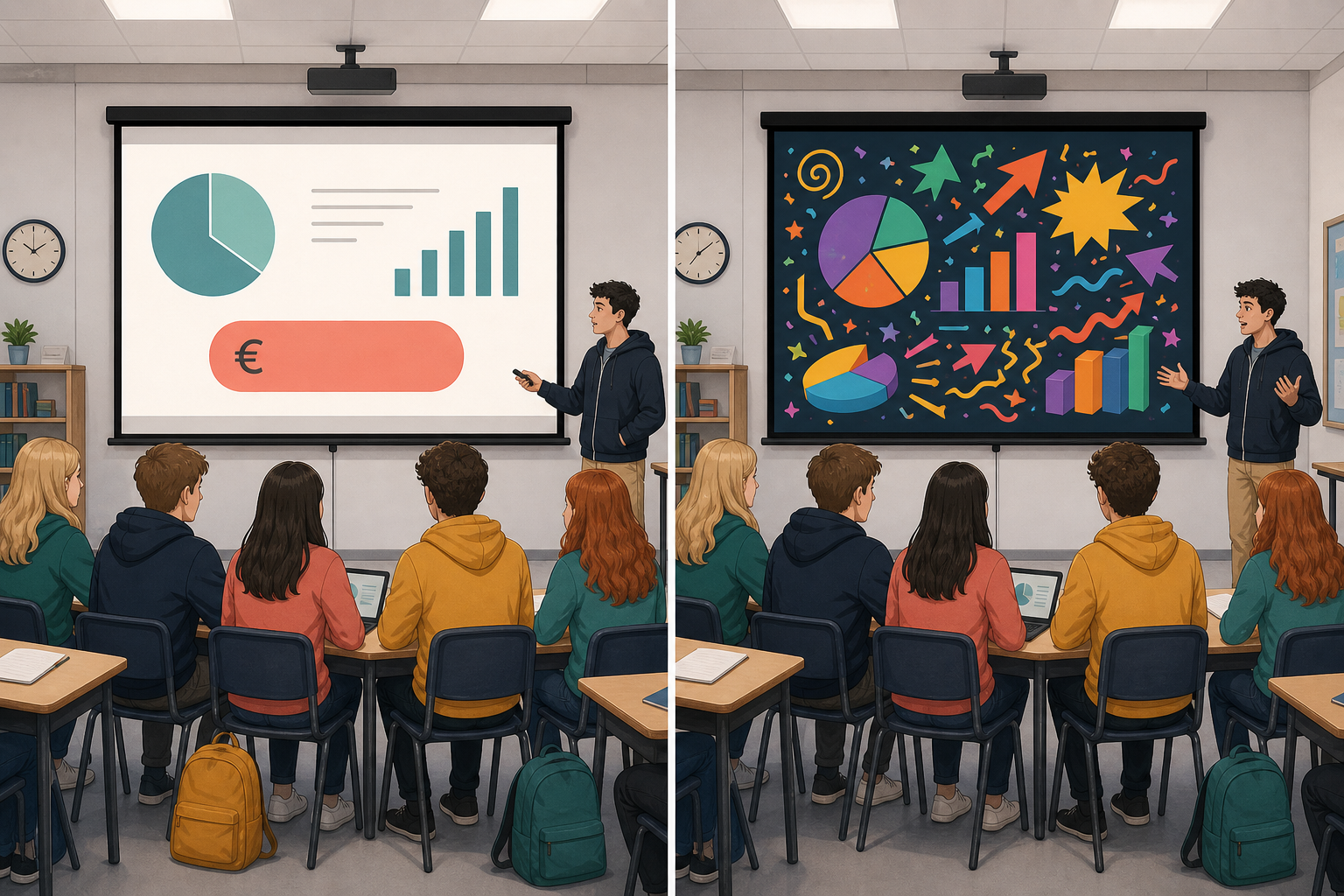 Today you add at most one or two calm motion choices to the piece you will show at interview: your format 1 file. Busy bounce, spin, and stacked effects look amateur and pull eyes off your idea.
You will practise restrained motion on a short practice file first (slides, CapCut, or Canva, matching your format). Then you polish format 1 with the same one-to-two rule.
Format 1 means the presentation, short video, or carousel you are building for VET in {{code:Project_Portfolio/09_specialism/sm2/}}. If yours is missing, tell the teacher now and use today's practice file as a stand-in.
What you are working on today
- Using quiet, restrained motion, whether your piece is slides, a CapCut video, or an animated carousel
- Sticking to one or two deliberate motion choices across the whole piece
- Telling the difference between motion that steers the eye and motion that just gets in the way
Warm-up
The two versions of the same slide above show the same idea: one with quiet motion, one with everything moving at once. Which of the two would you trust in a VET interview, and what makes you say so?
2 - Key Concepts ~6 mins
Motion should serve the audience. If you cannot say in one sentence what a movement is for, cut it.
| Concept | Why it matters | Example |
|---|---|---|
| Motion as direction — a small entrance, cut, or transition that steers the eye to the next idea | Examiners and sponsors notice the message first when movement is quiet and purposeful | A single fade-in on the cost figure in your enterprise pitch so the room lands on the number |
| Motion as distraction — bounce, spin, flash, or stacked effects that compete with the content | Busy motion reads as unfinished work and undercuts a VET interview or sponsor deck | Every bullet flying in from a different corner on a Work Experience summary slide |
| One-to-two motion elements rule — at most one or two deliberate motion choices across the whole piece, not one effect on every object or every shot | Restraint looks designed; more effects make the piece feel random | One subtle slide transition plus one fade-in on the final call to action — then stop |
| Restrained defaults — fade, appear, simple cut, soft dissolve; avoid bounce, spin, zoom loops, and auto-play noise | Safe defaults still look modern and keep the piece interview-ready | CapCut jump cut between two clear clips of a GAA skills demo, with captions already on screen — no glitter overlay |
The same one-to-two rule applies whether format 1 lives in slides, CapCut, or a Canva carousel. Template defaults are not a free pass — they still count toward your budget.
3 - Step-by-step Task ~15 mins
The room splits three ways now. Find your own path below and work through that one only; the other two lists belong to other people's formats.
- Slides: your click-by-click steps, with screenshots, are in the walkthrough on this step. Work through them at your own machine.
- CapCut: your teacher will demonstrate the click path on the classroom screen, and the CapCut list below is what you follow along with. Pause with the teacher after each item.
- Canva: your teacher will demonstrate the click path on the classroom screen, and the Canva list below is what you follow along with. Pause with the teacher after each item.
Whichever path you are on, you practise on a short practice file first, not on your real format 1. Save that practice file as {{code:motion_practice}} inside {{code:Project_Portfolio/09_specialism/sm2/}}. In CapCut or Canva, give the project that exact name and put a link or export of it in {{code:sm2/}}.
CapCut path (video format 1)
Match the teacher's screen click for click. You will work with two short shots of a GAA hand-pass drill, a wide setup and then a close-up of the pass; your teacher has the clips for you, or you can use any two throwaway shots you already have in {{code:sm2/}}. You may also add a fade-in of the skill name Hand pass.
- First, open CapCut and start a practice project from those two shots. Name the project exactly {{code:motion_practice}}.
- Then place one clean hard cut, or one short dissolve, between the two clearest shots and nowhere else.
- If you want, add one simple text-in of the skill name Hand pass, or leave your captions static. No stacked stickers.
- Next, open the effects or animation list on the timeline and delete the zoom punches, glitter, flash overlays, and loop stickers until only your one or two choices are left.
- Replay the whole fifteen to sixty second piece once, with the sound off if you can, and ask yourself what each remaining movement is doing for the viewer.
- Then count your deliberate motion choices across the whole piece and keep at most two. If you cannot say what an effect is for, delete it.
- Last, check the project is still named {{code:motion_practice}} and that a copy, export, or link sits in {{code:Project_Portfolio/09_specialism/sm2/}}, so it stays separate from format 1.
Canva path (carousel or animated export)
Match the teacher's screen click for click. You will build a three-page enterprise carousel — problem, price €3, call to action — with one soft page fade or one fade on the €3 only.
- First, open Canva in your school account and start a short multi-page practice carousel with those three pages. Name the design exactly {{code:motion_practice}}.
- Then apply one soft page transition, or one fade on the €3 alone, not both.
- Next, select the decorative icons and secondary shapes and turn off loop animations and auto-play motion on anything that is not your one key element.
- Play or preview the full set of pages once, straight through.
- Then count your deliberate motion choices across the whole piece and keep at most one or two. Delete anything you cannot defend in one plain sentence.
- Last, check the design is still named {{code:motion_practice}} and that a share link or export sits in {{code:Project_Portfolio/09_specialism/sm2/}}, so it will not be mixed up with format 1.
Once your teacher has watched you name and remove one junk effect on {{code:motion_practice}}, you are ready to work on your real format 1.
4 - Common Issues ~4 mins
Common Issues
| Issue | Solution |
|---|---|
| Every bullet animates one after another and the slide takes forever | Select the text box, open Animations or the Motion panel, and remove per-bullet effects. Keep one fade on the whole block or on a single key line only. |
| I cannot find Animations in PowerPoint for the web or Motion in Google Slides | Click the object first (title or shape). Many motion controls only appear after something is selected. If the ribbon still looks different, use the on-screen search or ask your teacher to point to the same control on the classroom display. |
| My CapCut or Canva template added five effects automatically | Templates are not finished design. Delete effects until only one or two deliberate motion choices remain, then replay. The one-to-two rule still applies to the whole piece. |
| Motion plays too fast or too slow when I rehearse speaking | Prefer On Click (slides) or longer holds between video cuts so your voice leads. If an automatic timing steals your pause, slow it down or switch to click/manual advance. |
| I cannot tell practice from format 1 in {{code:sm2/}} | Practice stays as {{code:motion_practice}}. Format 1 keeps the filename you already used for that piece. Do not Save As a new mystery name. |
5 - Independent Practice ~20 mins
Independent Practice
Slides: at most one quiet entrance plus one shared transition style across the deck.
CapCut: open your existing format 1 clip. Keep one clean cut (or short dissolve) between the two clearest demo shots, and at most one simple caption fade-in on the skill name — delete stickers, zoom punches, and stacked template effects. Export or save back over the same format 1 evidence file in {{code:sm2/}} under the name already used (not a new export name).
Canva: open your existing format 1 carousel. Keep one soft page transition or one fade on the key number only; turn off loop animations on decorative icons. Keep the same design name and the same evidence file or link in {{code:sm2/}}.
Play the whole piece once, remove anything that fails the "what is this motion for?" test, and leave format 1 in {{code:sm2/}} under its existing name.
- Format 1 still opens from {{code:sm2/}} under the same filename you already used for that piece (not {{code:motion_practice}}, not Untitled)
- You can point to at most one or two deliberate motion choices in the whole piece
- Each kept motion has a plain-English job (for example "lands the eye on the final cost" or "moves cleanly between two demo shots")
- A full play-through feels calm enough that a stranger could follow the idea without watching effects instead of content
Unlock the full learning experience
You're previewing this lesson. Get full access to this lesson and hundreds more — each one ready to teach, with interactive activities, printable resources and pupil progress tracking built in.
This lesson is copyright of 123Learn.ie 2017 - 2025. Unauthorised use, copying or distribution is not allowed.