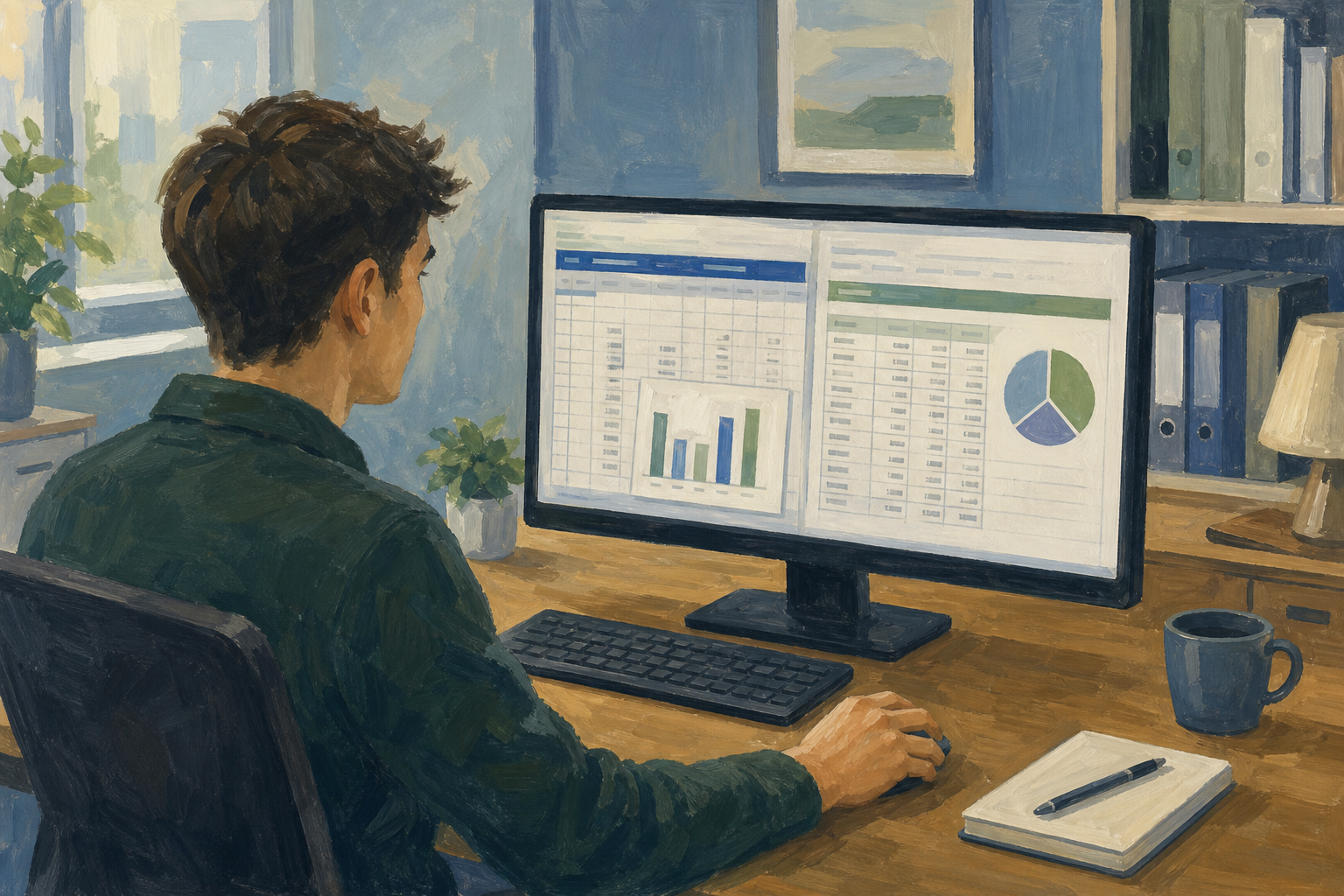
Today you will
- make a table of numbers that is easy to read
- add a chart that shows the same numbers
- put the chart beside the table on one page
Think of a chart with numbers behind it, like your Something Real project or your Work Experience hours. Could someone read the exact week 3 total from the chart alone?
A companion data table holds the exact numbers behind a chart, so the reader can check them.
Banded rows switch between two light colours, so your eye stays on the right line.
Right-aligned numbers sit on the right of the cell, so they line up neatly.
A one-page layout means the chart and table both fit on the screen without covering each other.
Example
The chart shows that week 5 was the best week. The table shows it made exactly €140.
You will make a page with a chart and a table for a ticket stall at a community event. Watch your teacher start it, then follow the steps in the box below. Type or paste this data into your sheet, starting in cell {{cell:A1}}.
| Week | Tickets sold | Revenue (€) |
|---|---|---|
| 1 | 12 | 60 |
| 2 | 18 | 90 |
| 3 | 15 | 75 |
| 4 | 22 | 110 |
| 5 | 28 | 140 |
Common snags
- The chart covers the table. Click the chart once and drag it to column E.
- There are no banded rows. Select {{range:A1:C6}} again and use {{menu:Home -> Format as Table}} or {{menu:Format -> Alternating colors}}.
- The chart shows the wrong columns. Delete it, select only {{range:A1:B6}}, and insert it again.
- You can't find your file. Look in {{code:Project_Portfolio}}, then {{code:09_specialism}}, then {{code:sm3}}.
Unlock the full learning experience
You're previewing this lesson. Get full access to this lesson and hundreds more — each one ready to teach, with interactive activities, printable resources and pupil progress tracking built in.
This lesson is copyright of 123Learn.ie 2017 - 2026. Unauthorised use, copying or distribution is not allowed.