1 - Introduction ~5 mins
Welcome
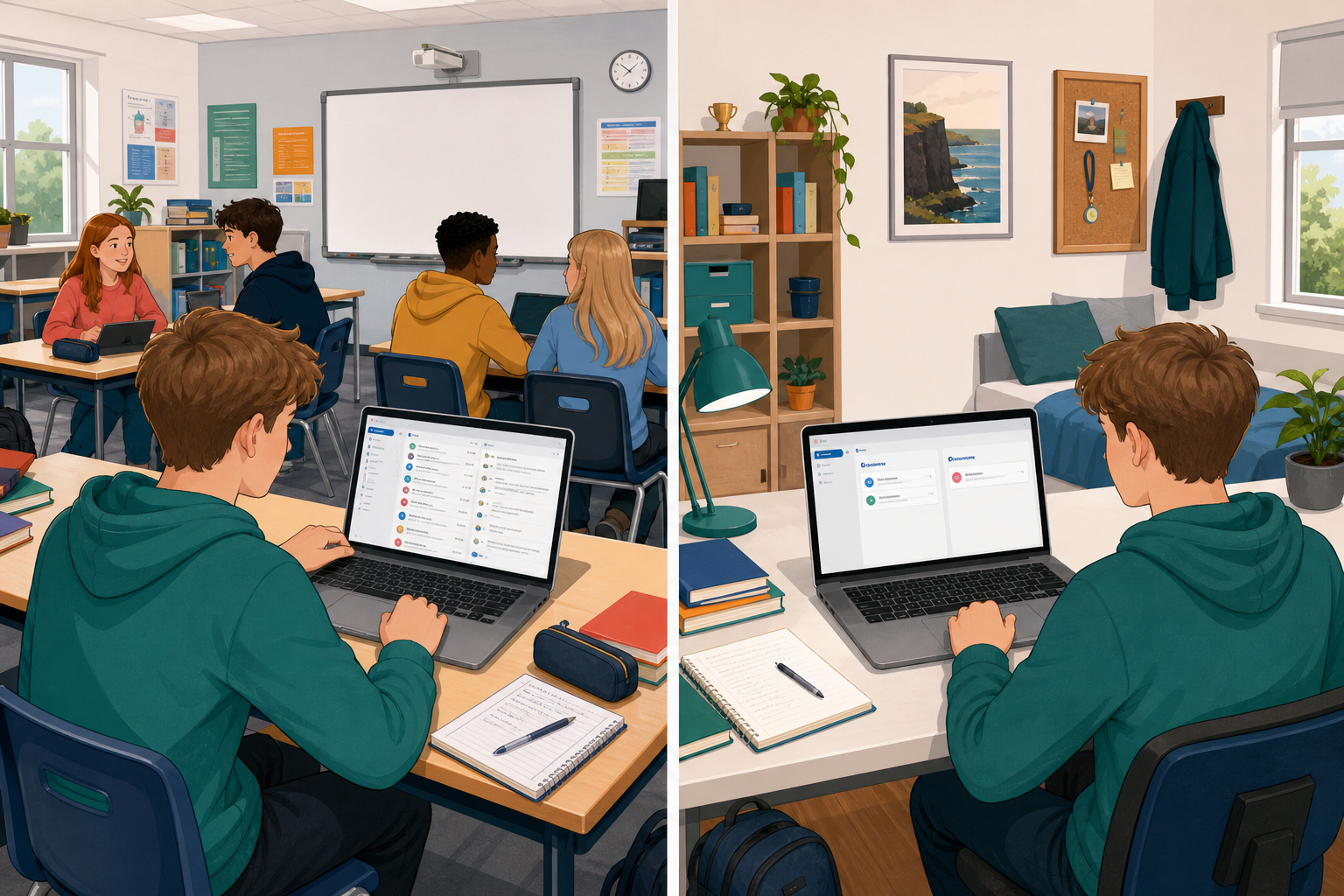 A crowded inbox slows everything down: Work Experience messages, mail about the subject area you have chosen to specialise in, and project emails all fight for attention. Today you will search, filter, and file mail so the right message is findable in seconds, not buried under noise.
By the end of this lesson, you will be able to:
- Search, filter, and file email by date, sender, subject, or attachment
- Create folders or labels and use archive versus delete thoughtfully
- Organise at least three emails into two purpose-built folders or labels
Warm-up
Think about your school inbox right now. If your teacher asked you to find the last email about Work Experience or your Something Real project, how long would it take, and what would you click first?
2 - Key Concepts ~5 mins
Three ideas drive every filing decision today. Your teacher will show each one live in Outlook and Gmail after you skim the table.
| Concept | Why it matters | Example |
|---|---|---|
| Search and filter — keywords, sender, subject, date, or has attachment | Finds one message in seconds instead of scrolling the whole class away | Search Work Experience or your supervisor's name |
| Folders and labels — a named home is simply a folder in Outlook, or a label in Gmail, that you set up for one topic and keep all of that topic's mail in | Project mail stays with project mail all the way through your specialist subject | ICT_Specialism and Work_Experience |
| Archive versus delete — archive keeps mail searchable; delete is for junk | Clears the inbox without losing Key Assignment or placement evidence | Archive a timetable confirmation; delete only spam |
Worked example: two named homes, three messages
- Aoife is building an enterprise pitch for a local catering side hustle.
- She creates ICT_Specialism and Enterprise_Pitch.
- She searches pitch, files three useful messages, archives two old confirmations, and bins spam.
- Her screenshot of both of those homes with mail inside them is the same evidence you will save in Independent practice.
3 - Step-by-step Task ~20 mins
Your teacher demos Outlook, then Gmail. When they say go, follow the steps for your school email app on your machine. You will search, filter, create two filing homes, move practice messages, and compare archive with delete.
If your inbox is nearly empty, use the three practice emails your teacher sent today.
4 - Common Issues ~5 mins
Common Issues
| Issue | Solution |
|---|---|
| I cannot find Create new folder or Create new label | Outlook: right-click in the left folder pane under your account or Folders. Gmail: scroll the left sidebar, open More if needed, then Create new label. School accounts sometimes hide the pane; widen the window or click the menu icon to show it. |
| I created a Gmail label but the message still looks unfiled | Creating the label is only step one. Open the message, click Labels, and tick the new label (or use Move to). Then click the label name in the sidebar to confirm the message appears there. |
| Search returns nothing even though I know the email exists | Check spelling, try one distinctive word only, or search the sender's name. In Gmail include All Mail. Clear old filters (date, has attachment) that may be hiding results. |
| I archived or deleted the wrong message | Search for it immediately. Archived mail is still in the account (Outlook Archive folder / Gmail All Mail). Deleted mail sits in Deleted Items or Bin for a limited time; open that folder and move the message back. |
| My screen layout does not match the instructions | Web Outlook and Gmail update often. Match by control name (Search, Archive, Labels, Move) rather than exact position. Ask your teacher to point to the control on the classroom screen. |
5 - Independent Practice ~15 mins
Independent Practice
- Two clearly named folders or labels exist (one Specialism, one second real topic)
- At least three messages are filed across those two homes
- A screenshot shows both homes with messages visible
- File is named exactly {{code:sm4_email_filing_evidence.png}} and saved inside {{code:09_specialism/sm4/}} in your {{code:Project_Portfolio}}
Unlock the full learning experience
You're previewing this lesson. Get full access to this lesson and hundreds more — each one ready to teach, with interactive activities, printable resources and pupil progress tracking built in.
This lesson is copyright of 123Learn.ie 2017 - 2025. Unauthorised use, copying or distribution is not allowed.