1 - Introduction ~5 mins
Welcome
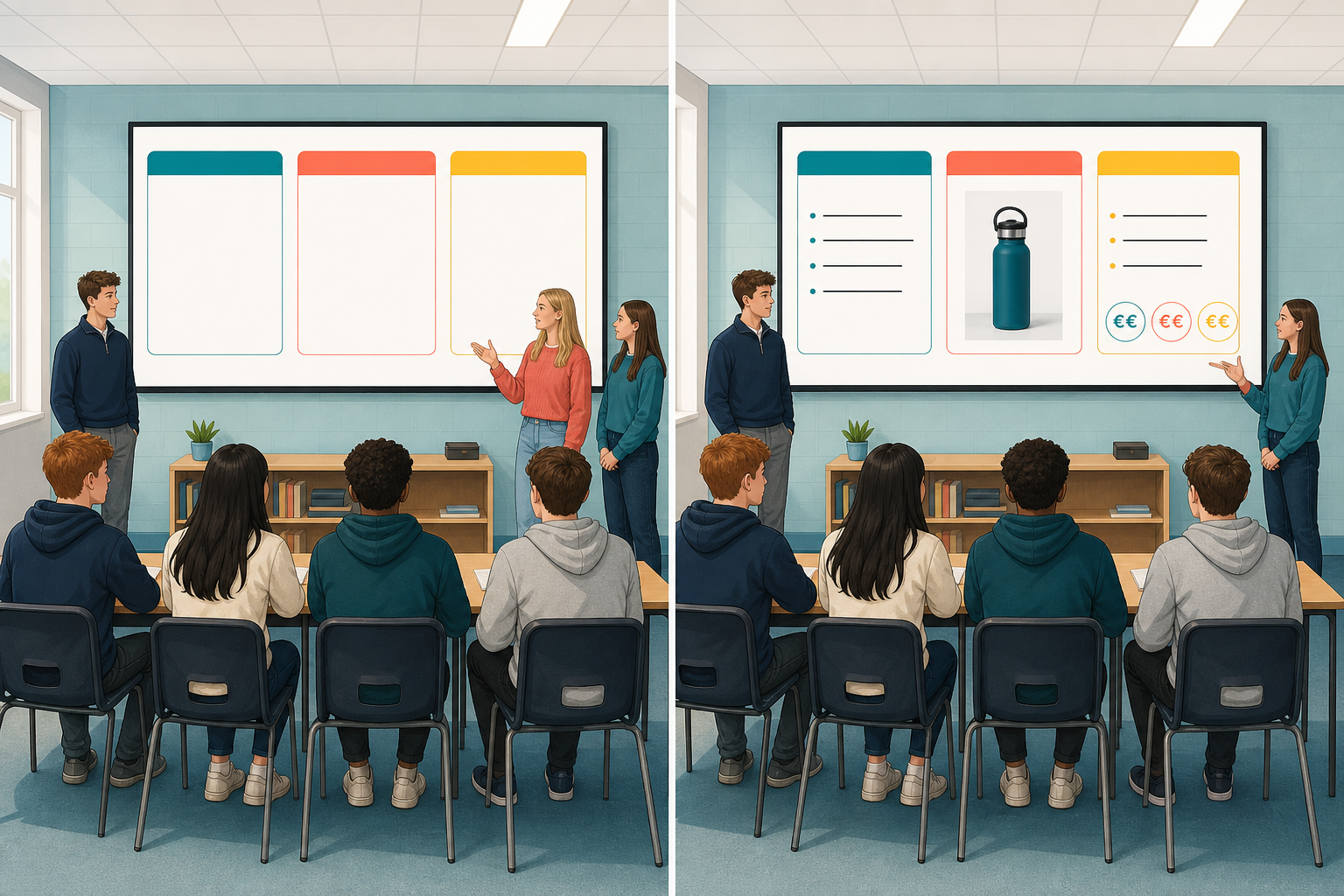 Plain English: Format 1 is the main piece you will show when you sit down with an interviewer and talk them through your Something Real project. That interviewer is an adult who does not know your project and has to see, from the piece in front of them, what you did and what you learned. Your v1 file is titles only. Today you make v2, with real words under those titles, one picture, and one number.
Simple rule: structure first, content second. If the structure is right, plain wording works. If the structure is wrong, polish will not save it.
What you will be able to do today
- Add your text, pictures and numbers only once the structure is locked
- Cut anything your interviewer does not need
- Turn your titles-only skeleton into a v2 file with content in every section
2 - Key Concepts ~5 mins
Your teacher will put a sample piece on the board and fill one or two slides of it live while you watch. Read the four short rules below once first, then watch how they are used.
DEMO ONLY snapshot: Coastal Crafts (not your project)
Do not copy these lines into your file. They are for the live demo only.
- The gap: Shoppers want unique GAA-county cases; high-street stock is generic.
- Proof (data): Unit cost €6.50, sale price €15, target 40 units at the next county final market.
- The ask: Feedback on pricing and one introduction to a stall-holder contact.
The question you ask of every line — call it the purpose filter: would the interviewer need this line to understand the project or what you learned? If the answer is no, the line does not stay.
Four rules (all formats)
- First, structure locked — titles and order stay fixed; you only fill under them today.
- Second, the purpose filter — every line, image or number has to help the interviewer.
- Third, mix your content types — short text for claims, one image for proof or process, one number the interviewer can check.
- Fourth, cut ruthlessly — if removing a line does not weaken the purpose, remove it, and paste the cut lines into your notes first.
These rules apply to a slide deck, Canva pitch, infographic, storyboard, or podcast script outline. The tool changes; the rules do not.
3 - Step-by-step Task ~8 mins
Do now (about 8 minutes): teacher demo on two sample slides, then you open a v2 copy and fill your first content section only with short lines about your Something Real project. Full fill, image, data, and cut happen in Portfolio build.
If format 1 is a script, Canva file, infographic, or storyboard rather than slides, follow this same order in your own tool:
- First, open your locked skeleton in {{code:Project_Portfolio}}/{{code:09_specialism}}/{{code:sm2}}.
- Then duplicate it, or save as, with a v2 name: {{code:sm2_vet_script_v2}}, {{code:sm2_vet_infographic_v2}}, {{code:sm2_vet_storyboard_v2}}, or {{code:sm2_vet_canva_v2}} (or a name your teacher has agreed with you). Keep it in {{code:sm2}} and leave the skeleton untouched.
- Do now: fill your first headed section with two or three short lines about your project, not Coastal Crafts. In a script or storyboard, that first headed section is your opening chunk — the first block of the script, or the first frame.
- Later in Portfolio build: finish every section; add one visual or audio proof; add one labelled number or estimate; paste at least two cut lines into a Cuts box and then delete them from the main text; check the file is in {{code:sm2}}.
If you are on slides, work through the platform steps below and stop when you reach the end of the Do now section, because the rest of the pattern is for Portfolio build later in the lesson.
4 - Common Issues ~2 mins
Common Issues
Your teacher will point at this table for about two minutes, then again at the mid Portfolio-build stop-and-check. Keep it open as a quick reference while you work.
| Issue | Solution |
|---|---|
| I cannot find {{code:sm2_vet_presentation_v1}} in my folder | Check {{code:Project_Portfolio}} → {{code:09_specialism}} → {{code:sm2}}. If it is still missing, rebuild a titles-only skeleton (five titles max), save as {{code:sm2_vet_presentation_v1}} (or your non-slide skeleton name), then copy to v2 before editing. Non-slide v2 names: {{code:sm2_vet_script_v2}}, {{code:sm2_vet_infographic_v2}}, {{code:sm2_vet_storyboard_v2}}, {{code:sm2_vet_canva_v2}}. |
| My slides are full of long paragraphs | Rewrite each paragraph as two or three short bullets. Put detail you still need into speaker notes or your spoken rehearsal, not on the slide the examiner must read at speed. |
| I keep redesigning colours and layouts instead of writing content | Stop formatting. Finish every section’s words, one image, and one data moment first. Design polish comes in later sessions; today is content-complete v2. |
| I do not know what to cut, or cutting feels painful | Ask whether the VET audience needs the line for purpose, process, proof, or ask. Paste lines into speaker notes or a Cuts box first so nothing feels lost, then delete from the main slide or section. |
5 - Portfolio Build ~30 mins
Portfolio build
- Gate (first 2 minutes): Show your teacher {{code:sm2_vet_presentation_v2}} (or your non-slide v2) open in {{code:sm2}} with your first section already filled in your own words. If you are still on v1 only, or still have Coastal Crafts lines, fix that with your teacher before the long block starts.
- Confirm the name: Slide decks use {{code:sm2_vet_presentation_v2}}. Non-slide formats use {{code:sm2_vet_script_v2}}, {{code:sm2_vet_infographic_v2}}, {{code:sm2_vet_storyboard_v2}}, {{code:sm2_vet_canva_v2}}, or a teacher-agreed equivalent. v1 stays as the structure-only snapshot.
- Fill every locked section with short, purpose-led content about your Something Real project (not Coastal Crafts). One claim per bullet; no more than about five lines on any slide or block.
- One proof image: Prefer a real project photo. PowerPoint for the web: {{menu:Insert -> Pictures -> This device}} or {{menu:Insert -> Pictures -> Stock images}}. Google Slides: {{menu:Insert -> Image -> Upload from computer}} or {{menu:Insert -> Image -> Stock & web}}. Stock only for process or proof, not decoration.
- One labelled number: Add a checkable data moment (for example unit cost, sale price, unit target). Honest round estimates are fine if labelled as targets or estimates (for example {{code:Unit cost estimate: €7}}).
- Cuts evidence: Paste at least two deleted lines into title-slide speaker notes or a short Cuts box, then remove them from the main content.
- Stop-and-check: Halfway through, pause when your teacher calls the Common issues four stalls.
If a section feels blank, write two rough bullets first and tidy later — messy v2 content beats a perfect empty slide. Wave your teacher over if you are stuck on wording for more than a couple of minutes.
- {{code:sm2_vet_presentation_v2}} (or {{code:sm2_vet_script_v2}} / {{code:sm2_vet_infographic_v2}} / {{code:sm2_vet_storyboard_v2}} / {{code:sm2_vet_canva_v2}}) sits in {{code:sm2}} and is clearly separate from the structure-only v1
- Every section that had a locked title now has short content a stranger can follow about your own project
- The file includes at least one image or visual proof point and at least one number or data moment tied to your project (estimates labelled as such count)
- At least two cut lines are visible in speaker notes or a Cuts box so you can show what failed the purpose filter
Unlock the full learning experience
You're previewing this lesson. Get full access to this lesson and hundreds more — each one ready to teach, with interactive activities, printable resources and pupil progress tracking built in.
This lesson is copyright of 123Learn.ie 2017 - 2025. Unauthorised use, copying or distribution is not allowed.