1 - Introduction ~5 mins
Welcome
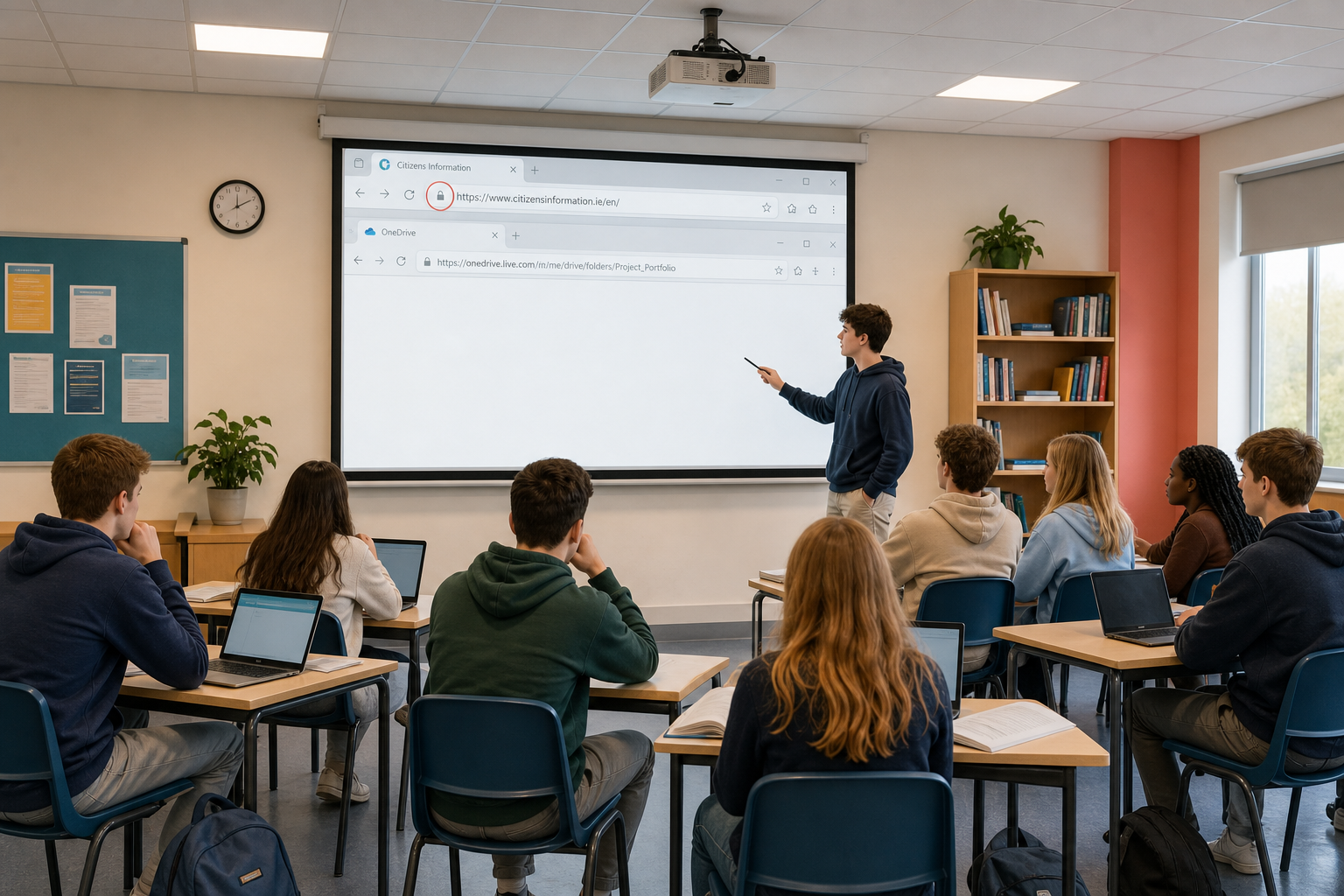 When you investigate a topic online, you already use a browser, open cloud folders, and click the padlock or site-information icon next to web addresses. Today you name those pieces properly, so that when you describe what you did or ask for help you can say exactly which part of the screen you mean.
You will build a personal Digital Literacy Glossary in your own words. Where you can, tie the examples to the topic you are investigating for your own project, so the terms stick as tools rather than a list to memorise.
| On the classroom screen | What to notice |
|---|---|
| Browser address bar | Full https address, plus padlock or site-information icon |
| Tabs, back button, menus | These are the UI you already click every day |
| Cloud tab (OneDrive or Drive) | Your {{code:Project_Portfolio}} path, not a single school PC |
By the end of this lesson, you will be able to:
- Define browser, UI, cloud storage, URL, domain, and HTTPS in plain language
- Give a real example for each core term
- Build a personal Digital Literacy Glossary with at least six core terms fully filled
Warm-up
Without looking anything up, can you say what the difference is between a URL and a domain? Keep your answer in your head. You will check it against the glossary in a few minutes.
No investigation topic yet? That is fine. Write Investigation topic: still choosing: using school VLE / Citizens Information as stand-in examples today and use those as your real examples until you settle on a topic.
2 - Key Concepts ~8 mins
Your teacher will point to each idea on the classroom screen. Use this table as a follow-along reference: you do not need to memorise it. Today you lock six core terms; extra terms can join the same glossary later from the flashcards.
| Concept | Why it matters | Example |
|---|---|---|
| Web browser — the app that opens and shows web pages | You need the name when you describe a problem or explain what you used in a Key Assignment | Chrome, Edge, or Safari opening citizensinformation.ie |
| User interface (UI) — everything on screen you see and click (tabs, menus, address bar, buttons) | Lets you follow instructions and describe exactly what you clicked | Tabs, back button, and address bar on the classroom browser right now |
| Cloud storage — files kept on remote servers and opened in a browser, not stuck on one school PC | Your Project Portfolio travels with you across rooms, devices, and modules | {{code:Project_Portfolio}} / {{code:09_specialism}} / {{code:sm4}} in OneDrive or Google Drive |
| URL — the full web address of a page, including https://, the site name, and any path after it | Stops you pasting a half-link when you judge sources or write references | https://www.citizensinformation.ie/en/ (the whole string in the address bar) |
| Domain — only the core site name inside a URL | Helps you name the site quickly without mixing it up with the full address | citizensinformation.ie (short name only, not the full path) |
| HTTPS — the page loads over an encrypted connection | Helps you check a link looks safer before you click or type personal details | https:// plus the padlock or site-information icon beside the address bar |
Glossary layout you will use
Your document uses a three-column table. Here is a worked sample with three core terms already filled in plain language. Your teacher will model one more full row out loud before independent practice. You finish the remaining core rows in your words.
| Term | Definition in my words | Real example |
|---|---|---|
| Web browser | The app I open to look at websites | Edge opening my investigation sources |
| URL | The full web address of a page | The long address in the bar when I open a CSO table |
| Cloud storage | Online folders I open in a browser so my files are not stuck on one PC | My {{code:Project_Portfolio}} in OneDrive or Google Drive |
Core six for today: Web browser, User interface (UI), Cloud storage, URL, Domain, HTTPS. Server, client, DNS, cache, and cookie are optional bonus rows only: add them later from the flashcards if you want, not as required content today.
You met this in the Introduction course, often a long time ago, and it does not come up again anywhere else in this course. It is worth getting solid.
| Term | What it means |
|---|---|
| CPU | central processing unit, the part that does the work. Its speed is given in gigahertz (GHz). |
| RAM | working memory. It empties when the power goes; storage does not. That is why you save. |
| Input devices | send information in: keyboard, mouse, scanner, microphone, webcam. |
| Output devices | send information out: monitor (also called a VDU, a visual display unit), printer, speakers. |
| Portable storage | USB flash drive, external hard drive, memory card. Each suits a different size of job. |
| System software | runs the machine itself: the operating system. |
| Application software | runs on top of it and does a job: word processor, spreadsheet, browser. |
| Cloud computing | the file lives on someone else's machine. You gain access from anywhere and lose control and offline certainty. |
Two things worth being able to do rather than just recite: sort any device you are shown into input or output (a touchscreen is both, which is the interesting case), and name the right kind of application for a job described in plain words, such as producing a budget to save for a holiday, or making a presentation for your class.
Symbols you should recognise on sight: Bluetooth, Wi-Fi, the battery, and the padlock in the address bar. And a strong password is long before it is clever.
3 - Step-by-step Task ~14 mins
Create your Digital Literacy Glossary document inside {{code:sm4}}, add a three-column table (header plus six core term rows), and lock in the first three worked-example rows with your teacher. You will finish the remaining core terms in independent practice.
4 - Common Issues ~3 mins
Common Issues
| Issue | Solution |
|---|---|
| I cannot find the {{code:sm4}} folder | Go back to {{code:Project_Portfolio}}, open {{code:09_specialism}}, then look for {{code:sm4}}. If {{code:09_specialism}} is missing, tell your teacher before you create files in the wrong place. |
| My new document landed in My files or My Drive root instead of {{code:sm4}} | Online apps save where you create them. Move the file into {{code:sm4}} now, or delete it and create again from inside {{code:sm4}} so the path stays clean. |
| I mixed up URL and domain in my sample row | Domain is the short site name (for example citizensinformation.ie). URL is the full address including https:// and any extra path after the domain. |
| The table has the wrong number of columns or rows | You need 3 columns and 7 rows (header plus six core terms). Add a row or column from the table tools, or insert a fresh table and copy across what you already typed. |
| My definition is just the same sentence as the board | Close the board view and rewrite in plain speech you would use with a classmate. If you cannot explain it without the board, ask your teacher for one more live example, then try again. |
5 - Independent Practice ~20 mins
Independent Practice
Support: Use the starter glossary your teacher shares (first three rows done; remaining terms listed) and fill definition + example only.
Stuck on a term? Use the Digital literacy terms flashcards: say it in your own words, then write. Domain and HTTPS trip people up: that is normal. If you stall, ask for one live example, then write it the way you would explain it to a partner, not the way it appears on the board.
Fast finishers: Add optional bonus rows (cookie, server, client, DNS, or cache) from the flashcards, still in your own words. These are optional only, not required today.
- {{code:sm4_digital_literacy_glossary}} sits inside {{code:Project_Portfolio}} / {{code:09_specialism}} / {{code:sm4}}
- All six core terms each have a definition in your own words and a concrete real example
- At least one example links to your investigation or stand-in sources; others may use school systems, OneDrive or Drive, or .gov.ie-style sites, not empty placeholders
- Someone else in the class could read one row and understand the term without the teacher explaining it
Unlock the full learning experience
You're previewing this lesson. Get full access to this lesson and hundreds more — each one ready to teach, with interactive activities, printable resources and pupil progress tracking built in.
This lesson is copyright of 123Learn.ie 2017 - 2025. Unauthorised use, copying or distribution is not allowed.