 Every game and app you use started as a set of step-by-step instructions written by a programmer — and almost none of them worked perfectly the first time. Programmers test their code, spot what went wrong and fix it. That is called debugging.
Today you are the programmer. We're going to build a game called Banana Jump, where a cat has to leap over falling bananas. Watch the board as each piece is modelled, then build it on your own device and run it to see what happens. When something doesn't work the way you expected — brilliant, that's a bug to hunt down.
The tool you will use is Scratch, a visual programming language: instead of typing lines of code, you drag coloured blocks out of the palette and snap them together in order, and the sprite does whatever the blocks say, in the order they are stacked.
Along the way you will make a character move around the stage, make copies of a sprite appear while the game is running, and get the program to notice when two things bump into each other. At the end you will have something you can play and share with your friends. Ready? Let's jump right in!
Start by creating a new Scratch project.
Go to the Scratch website using the link below and click on the 'Create' link in the blue bar at the top.
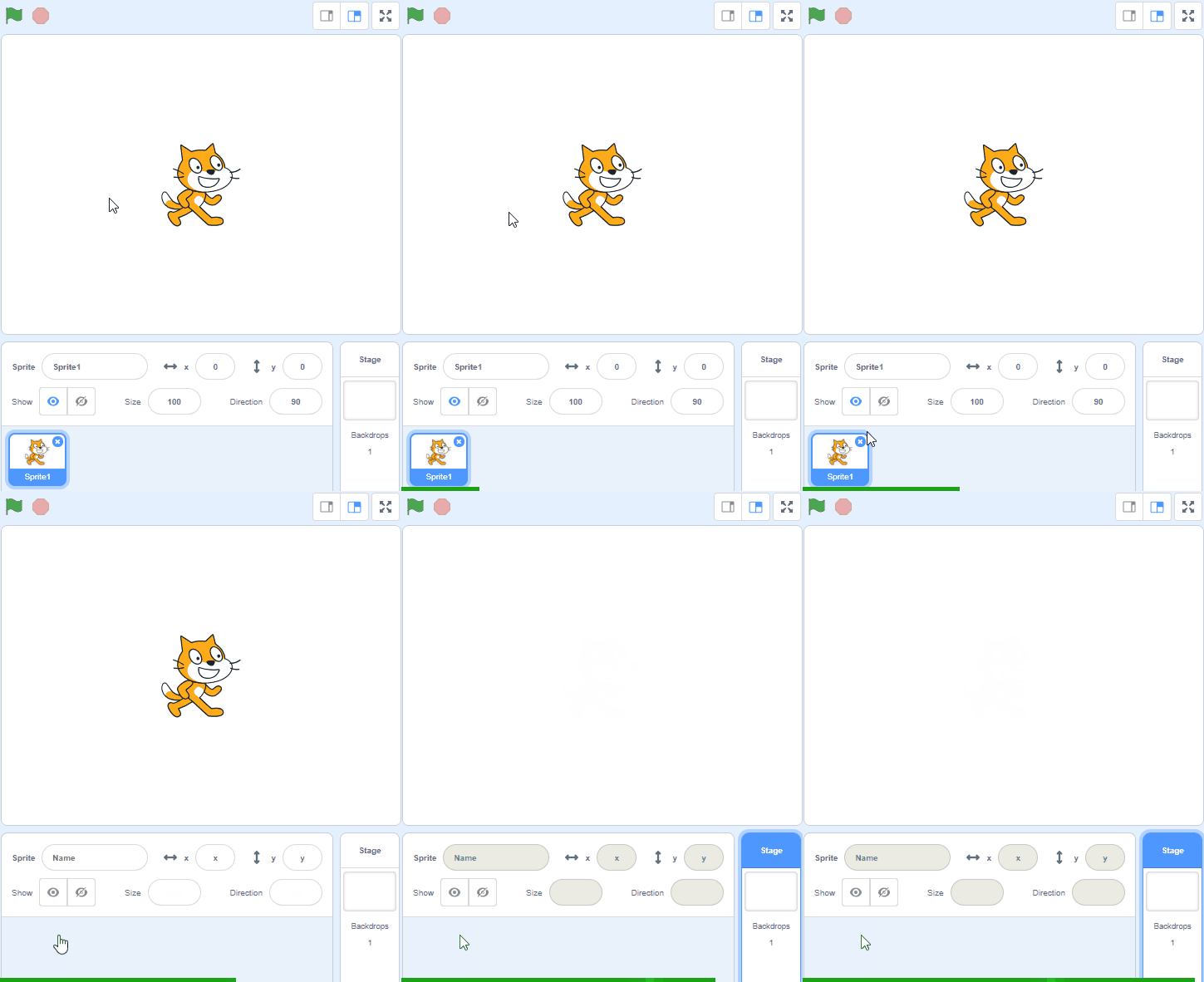
By default, each new project starts with the cat sprite already added. To delete the cat click on the x in the blue circle beside the cat in the sprite list.
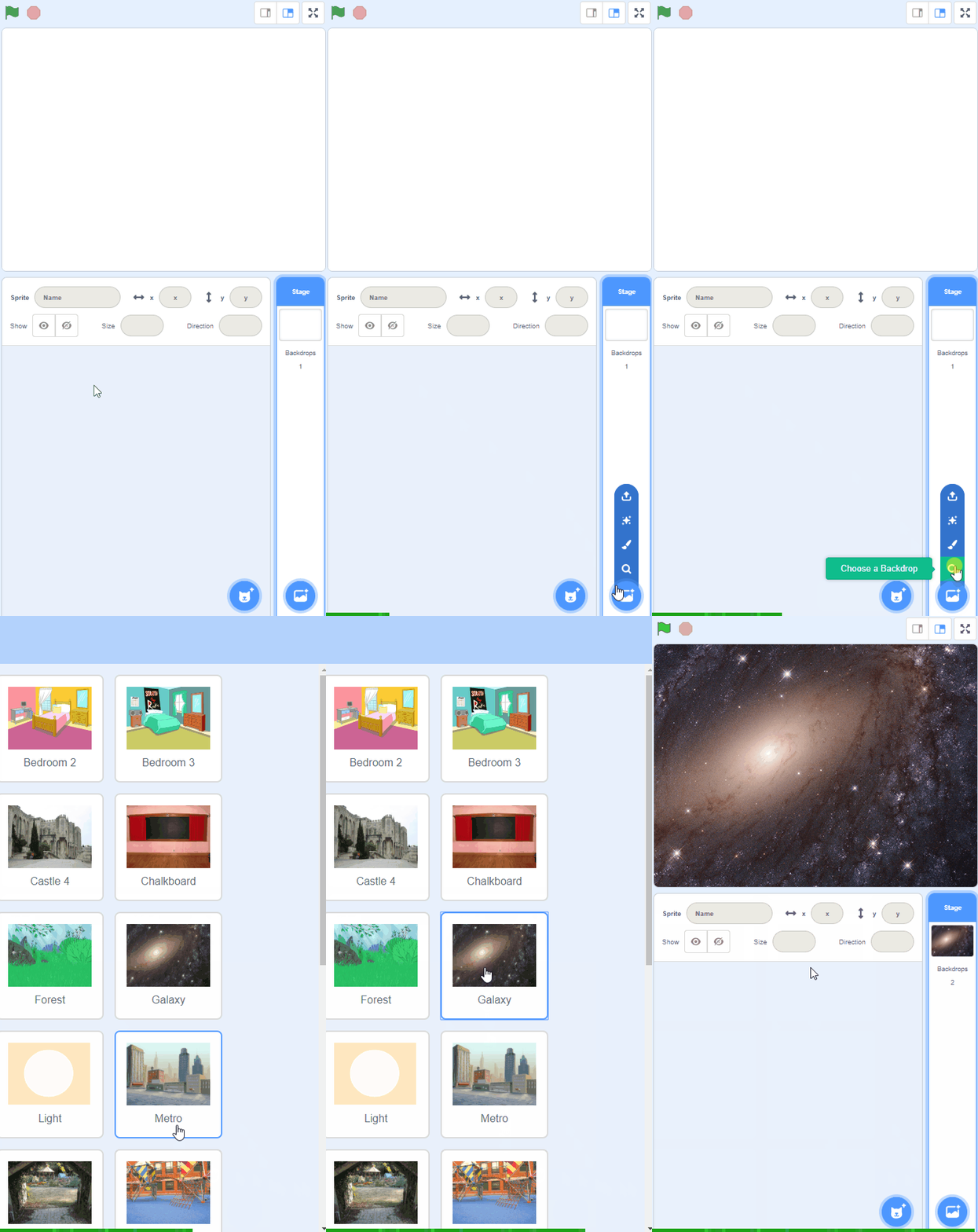
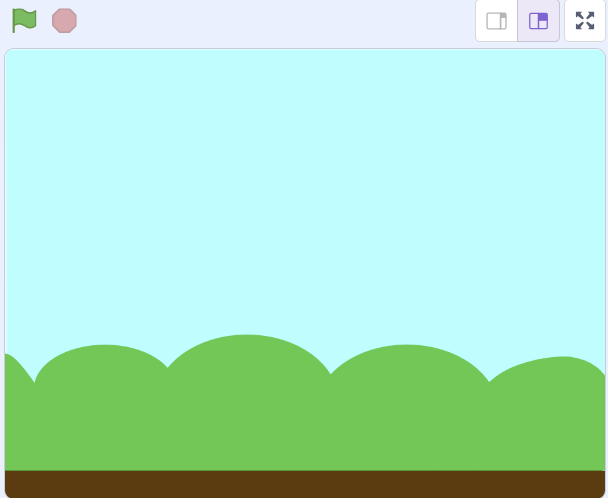
Add the Blue Sky backdrop from the backdrop library.
The brown part of this backdrop will be the ground in our game.
To add a backdrop from the backdrop library follow these steps:
- Put your mouse over the Choose a Backdrop button
- Click on the magnifying glass
- Find the backdrop you want in the library
- Click on your chosen backdrop
You can use search box or the filter links (Fantasy, Music, Sports etc) to locate your backdrop.
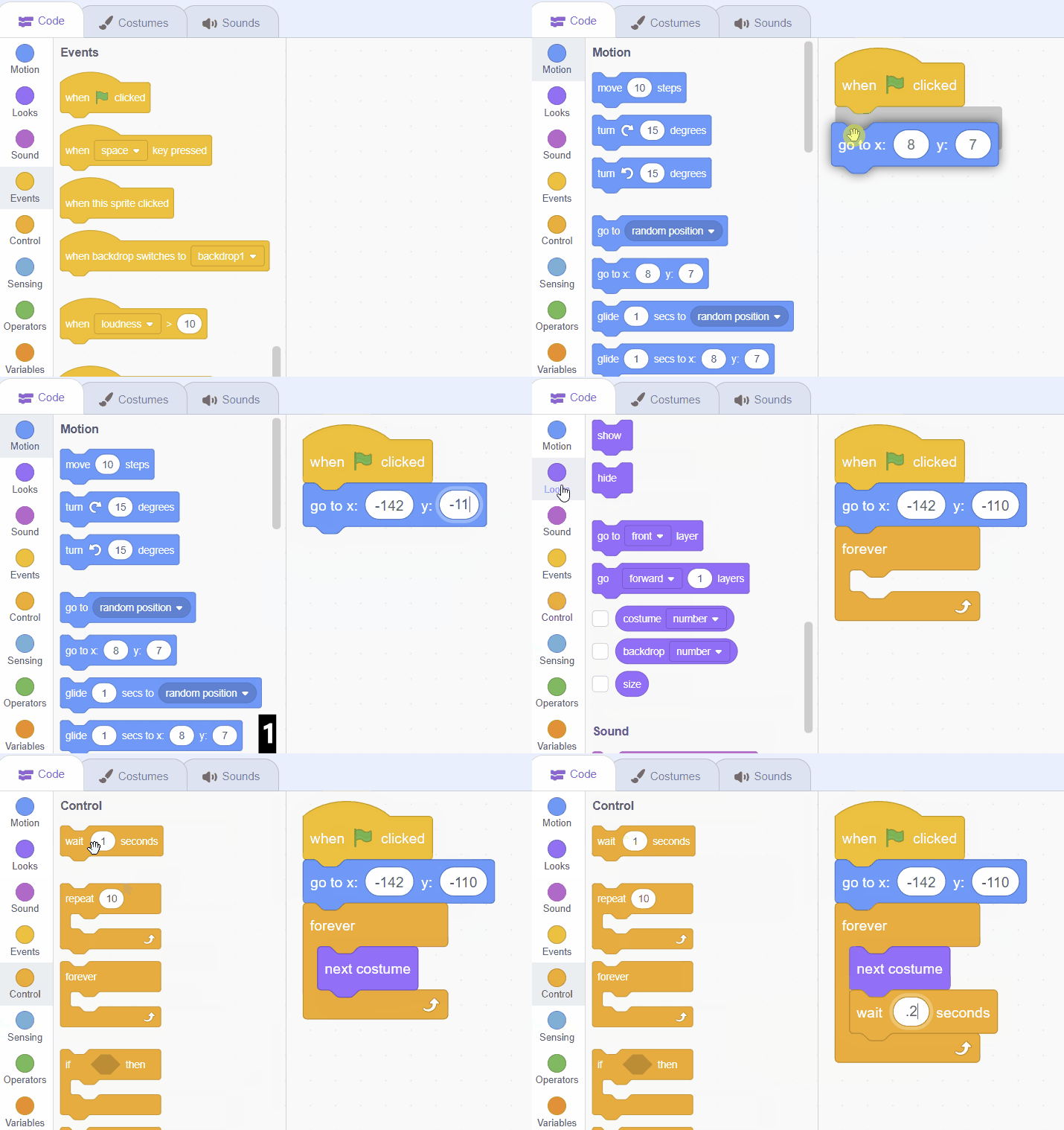
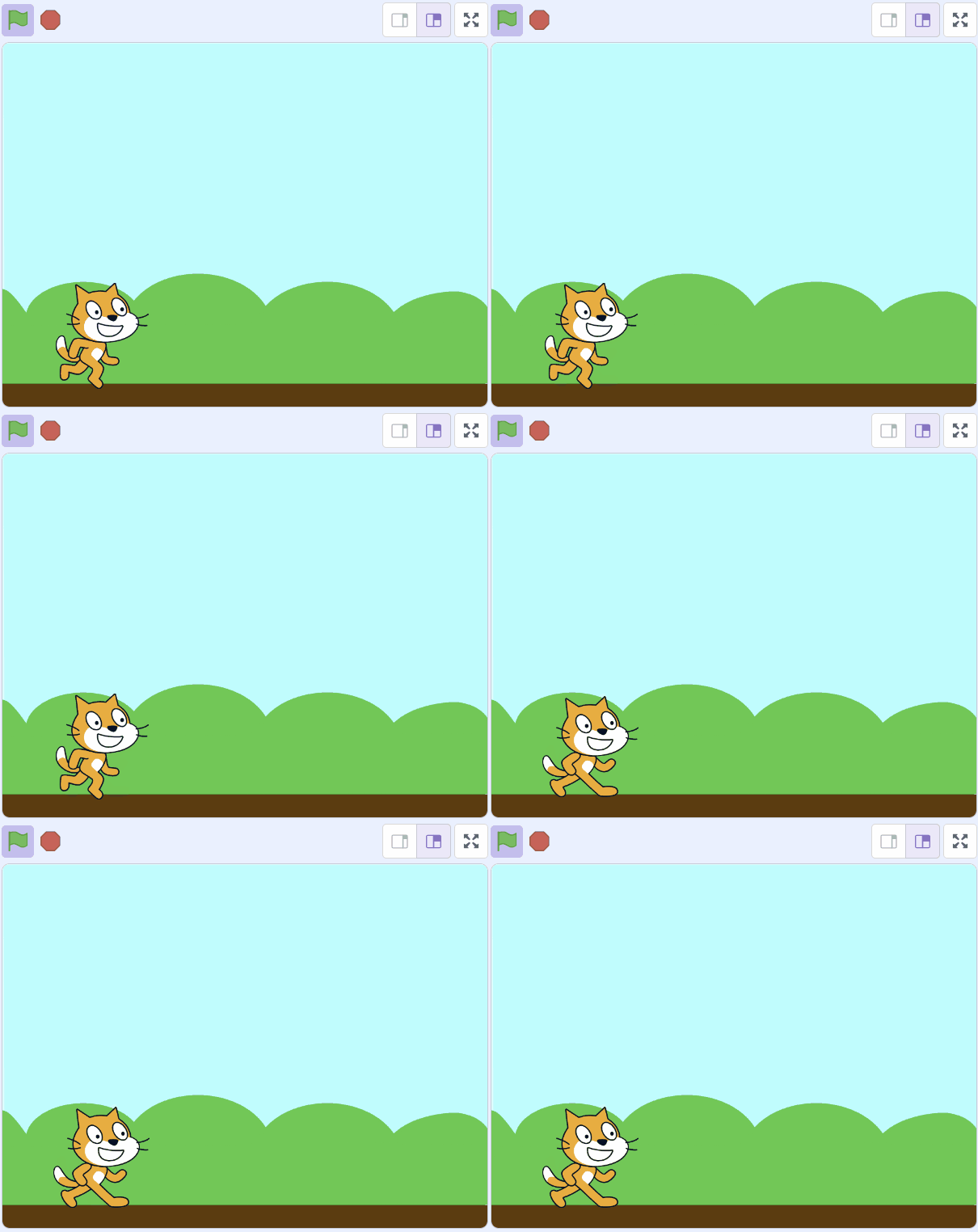
Let's start by positioning the cat down at the bottom left so it appears on the ground. Then we will also make it look like it's running by use a loop (forever block) to change it's costume.
Add the following code to the Sprite1 sprite:
when green flag clicked
go to x: (-142) y: (-110)
forever
  next costume
  wait (0.2) seconds
end
Unlock the full learning experience
You're previewing this lesson. Get full access to this lesson and hundreds more — each one ready to teach, with interactive activities, printable resources and pupil progress tracking built in.
This lesson is copyright of 123Learn.ie 2017 - 2025. Unauthorised use, copying or distribution is not allowed.
Scratch is developed by the Lifelong Kindergarten Group at the MIT Media Lab. It is available for free at https://scratch.mit.edu