1 - Introduction ~5 mins
Welcome
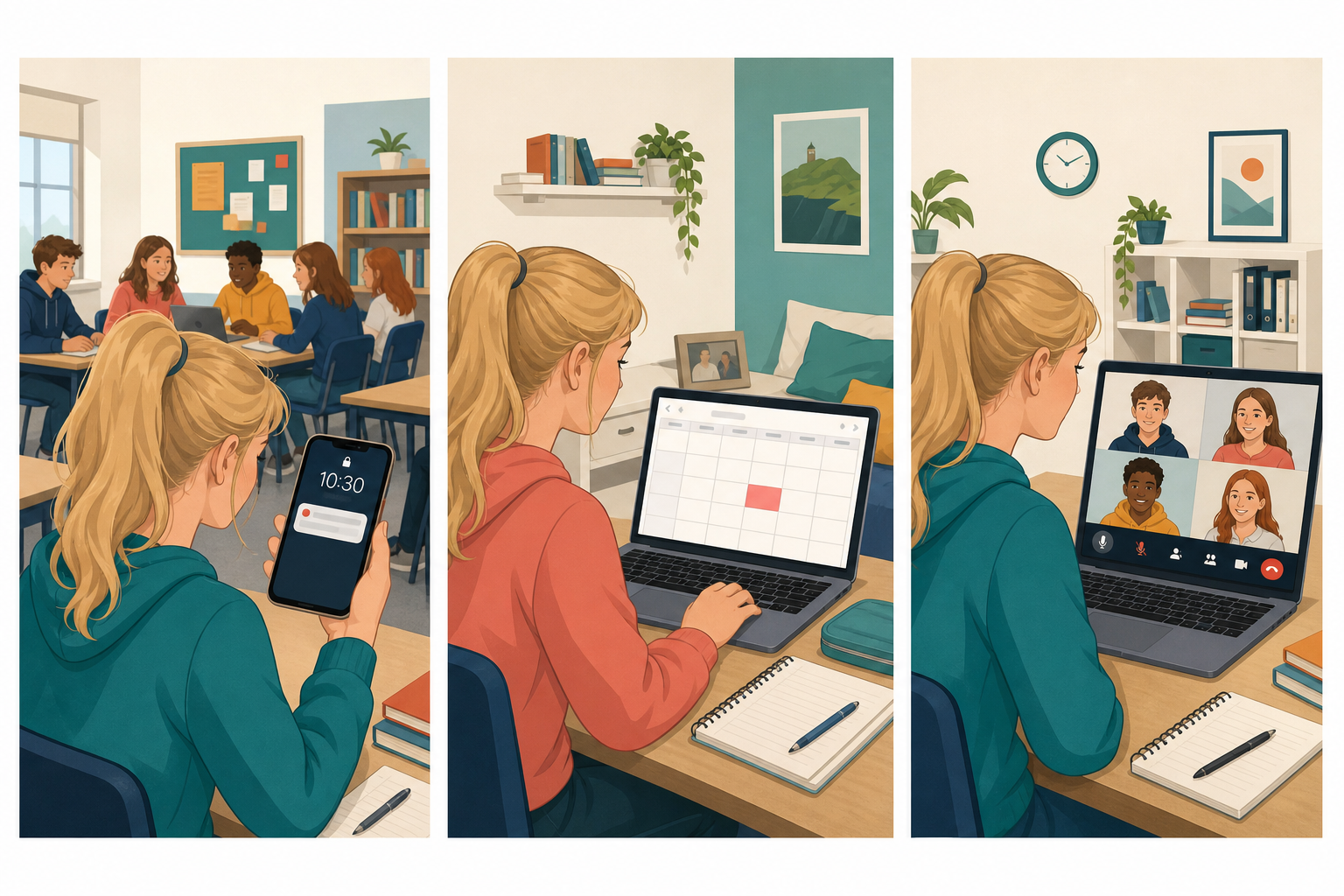 Deadlines slip and calls go wrong for the same reason: the tool was open, but the plan was not. Today you will sort mobile apps from web apps, put one genuine deadline from your own project work on your school calendar, and practise the mute-and-screen-share habits that make web conferences feel professional rather than chaotic.
By the end of this lesson, you will be able to:
- Compare mobile apps with web applications for placement and classroom tasks
- Create calendar entries for real deadlines
- Practise professional web-conferencing etiquette including mute and screen share
Warm-up
Think of the last time you nearly missed a Work Experience check-in, a Key Assignment hand-in, or a video call. Was the problem the app, the reminder, or the way the call started? Keep that moment in mind; you will fix the calendar side of it today.
2 - Key Concepts ~7 mins
These four ideas come up every time you set a reminder or join a Work Experience, VET, or project call.
| Concept | Why it matters | Example |
|---|---|---|
| Mobile app — software installed on a phone or tablet that often works offline and uses device features such as notifications and the camera | On placement or commuting, a mobile calendar or Teams/Meet app is often the only way to catch a reminder or join a short call | The Outlook or Google Calendar app on your phone pings you 15 minutes before a Work Experience supervisor meeting |
| Web application — software you open in a browser (Chrome, Edge, Safari) with no install; it needs a network connection for full use | School machines lock installs; browser calendars and Meet/Teams in the browser keep you working on any classroom PC | You open {{code:calendar.google.com}} or Outlook on the web on a shared school Chromebook to add a project deadline |
| Calendar entry — a dated event with a title, time, and optional reminder or location/link | A written deadline in a notebook is easy to miss; a calendar entry with a reminder is harder to ignore | "SM4 investigation draft due" next Thursday 15:00, reminder 1 day before, linked to your {{code:Project_Portfolio}} work block |
| Web-conferencing etiquette — the habits that keep a call usable: mute when not speaking, camera choice, clear screen share, and a quiet join | Examiners, supervisors, and community contacts judge professionalism in the first 30 seconds of a call | You join a Teams or Meet call for a project check-in muted, with your screen ready to share only the slide or sheet you mean to show |
Quick decision (2 minutes)
With a partner, pick mobile app or web app for each situation and say why:
- Adding a deadline on a locked school Chromebook
- Joining a 10-minute supervisor call on the bus
- Editing an event on a shared classroom PC
Be ready to share one answer with the class.
Worked example: Aoife's project deadline
Aoife's own project is a small enterprise pitch for a phone-case design side hustle. She creates one calendar entry titled Pitch cost sheet v2 due, sets it for next Wednesday 16:00, adds a 1-day reminder, and puts "Upload to {{code:Project_Portfolio}}/{{code:09_specialism}}/{{code:sm4}}" in the notes. She then screenshots the entry for her portfolio. That is the shape of the work you will save today: one real deadline, one clear reminder, one screenshot in your portfolio folder.
3 - Step-by-step Task: Calendar Entry ~12 mins
Follow the steps for your school suite to create a sample calendar entry in the browser. Use the sample deadline first; your own project deadline comes in the Portfolio Build. Conferencing etiquette is next, in a short whole-class practice.
Your school uses either Microsoft 365 or Google Workspace. Use the URLs and button names that match your school account.
4 - Step-by-step Task: Web-conferencing Etiquette ~7 mins
Your teacher hosts one class test meeting. Wait for the Teams or Meet link on the board, join that meeting only (do not create your own), stay muted until called, then practise share and stop-share when it is your turn.
5 - Common Issues ~3 mins
Common Issues
| Issue | Solution |
|---|---|
| My new event never appears on the calendar grid | Check you clicked {{btn:Save}}, then confirm you are viewing the same calendar and the correct week. In Google Calendar, make sure the calendar name on the left is ticked. |
| I get no reminder on the school PC or my phone | Reminders need a notification setting on the event and permission for the browser or mobile app to notify you. Re-open the event and set a 30-minute or 1-day reminder explicitly. |
| Everyone can hear my keyboard or the corridor on a call | Mute before you join, and stay muted when you are not speaking. Unmute only to talk, then mute again. |
| I shared my whole desktop and a private tab was visible | Stop sharing immediately. Next time choose a single window or a single browser tab that only shows the file you mean to present. |
| Calendar looks different from the screenshots | School tenants and app versions differ slightly. Match the button names (New event, Create, Save, Share, Present now) rather than exact colours or icon order. |
| I cannot find the test meeting | Use only the class link or code on the board. Do not invent your own Meet or Teams room for this practice. |
Unlock the full learning experience
You're previewing this lesson. Get full access to this lesson and hundreds more — each one ready to teach, with interactive activities, printable resources and pupil progress tracking built in.
This lesson is copyright of 123Learn.ie 2017 - 2025. Unauthorised use, copying or distribution is not allowed.