1 - Introduction ~5 mins
Welcome
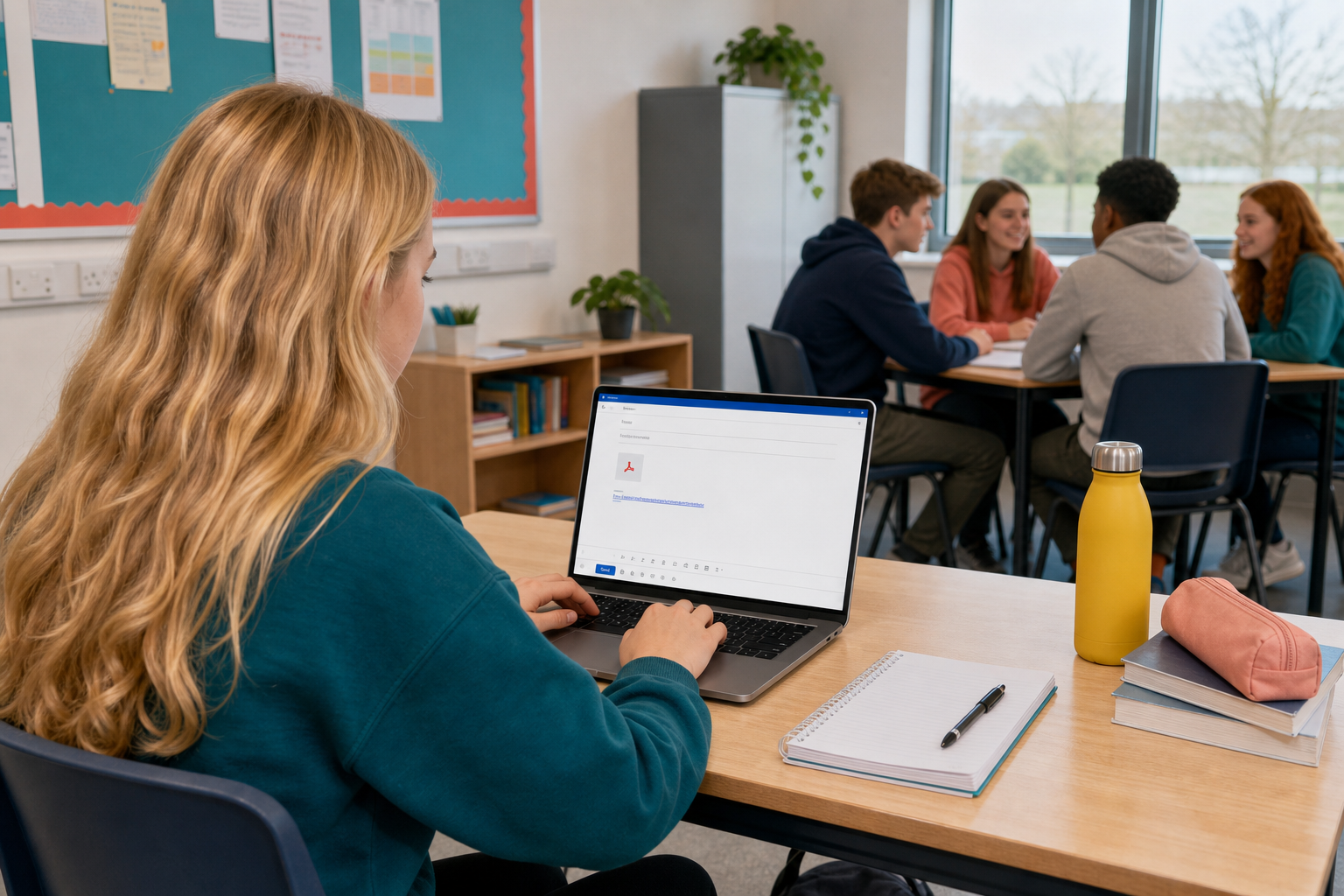 When you send coursework, a Work Experience update, or a file linked to your Something Real project, the way you attach or link that file is part of looking professional. Today you will practise attaching a file within size limits, deciding when a share link is smarter than an attachment, and inserting a friendly-display hyperlink so the reader sees clear words instead of a long URL.
What you will be able to do by the end of today
- Attach a file that is small enough for the email to actually arrive
- Decide when a big file is better sent as a share link than as an attachment
- Turn a long web address into a few clear clickable words, send the message, and save a clear screenshot of it from your Sent folder for your portfolio
Warm-up
Think of the last time someone sent you a file by email. Did the attachment open straight away, or did you get a bounce, a blocked download, or a link that expired? What would you have preferred them to do?
2 - Key Concepts ~5 mins
These three ideas decide whether your email lands cleanly or fails on the other side.
| Concept | Why it matters | Example |
|---|---|---|
| Attachment — a file copied into the email so the recipient gets the actual file with the message | Best for small, finished files the other person needs offline; large attachments often bounce or clog inboxes | Attaching a one-page PDF of your Work Experience hours log (under 1 MB) so your supervisor can print it |
| Share link — a cloud link (OneDrive or Google Drive) that opens the live file instead of sending a copy | Use this when the file is large, still being edited, or when you want one version everyone sees | Linking a 15 MB pitch video from your Project Portfolio instead of attaching it and hitting a size limit |
| Friendly-display hyperlink — a clickable phrase that hides the raw URL behind readable words | Long URLs look messy and untrustworthy; clear link text tells the reader what they are opening | Turning a Drive URL into the words "Open my investigation outline" in a message to your teacher |
Size limits to remember
Common school email limits are typically 25 MB (Gmail) or about 35 MB (Microsoft 365), though education tenants can set lower caps. For files over about 20 MB, or if you hit a bounce, prefer a share link from OneDrive or Google Drive. Always check your Sent folder after you send.
Worked example layout
Your evidence email should look roughly like this when you open the Sent folder:
- To: yourself or your teacher
- Subject: clear, e.g. Investigation outline for review
- Body: two short sentences, one of which contains a friendly-display hyperlink
- Attachment: one small file from your portfolio (PDF or document under a few MB)
Cc puts a second person on the message and everyone can see they are there. Bcc puts them there invisibly, which is the polite choice when mailing a list of people who do not know each other.
Cc yourself and the copy lands in your inbox, not just in Sent. Open that copy and print it. Before you print, check the page shows both addresses, the one you sent to and your own. A printout that does not show who it went to proves nothing.
3 - Attach or Share Link? ~4 mins
Quick decision practice
Before you compose a real message, lock in the attach-versus-share rule. For each situation below, decide whether you should attach the file or send a share link. Write A (attach) or S (share link) beside each one, then check with a neighbour or as a class.
| # | Situation | Your choice (A or S) |
|---|---|---|
| 1 | A one-page PDF under 1 MB for your Work Experience supervisor to print | |
| 2 | A 40 MB CapCut export of your short explainer video | |
| 3 | A budget spreadsheet you and a partner are still editing | |
| 4 | A short scanned consent form your teacher needs offline today | |
| 5 | A folder of five large images for a community proposal | |
| 6 | A finished one-page skills checklist exported as PDF |
Rule of thumb: small finished file the other person needs offline → attach. Large, live, or multi-person file → share link.
4 - Step-by-step Task ~18 mins
Follow the steps for your email app to compose a short message, attach a small portfolio file, insert a friendly-display hyperlink to a cloud file, and send the message to yourself (or your teacher if asked).
If you have no small file in sm4 yet: create a one-line document or export a one-page PDF into {{code:09_specialism/sm4}} and name it {{code:sm4_email_sample_attachment.pdf}}, then attach that.
When you finish: leave this message in Sent. In the next portfolio step you will screenshot it if it already meets the success criteria, or improve and resend once if something is missing. You do not need two perfect emails.
5 - Common Issues ~3 mins
Common Issues
| Issue | Solution |
|---|---|
| The email bounced or the attachment never finished uploading | The file is probably over the provider limit. Remove the attachment, upload the file to OneDrive or Google Drive, set view access, copy a share link, and put that link in the message instead. |
| My hyperlink shows a long URL instead of friendly words | Select the words first, then insert the link (or edit the existing link and change the display text). Do not paste the URL as plain text into the body. |
| The recipient says the link asks for permission | Open the file in OneDrive or Drive, check the share settings, and allow "anyone with the link can view" (or share specifically with your teacher's school email) before you resend. |
| I cannot find the message in Sent | Refresh the Sent folder. In Outlook check {{btn:Sent Items}}; in Gmail check {{btn:Sent}}. Search by the subject line you typed. |
Unlock the full learning experience
You're previewing this lesson. Get full access to this lesson and hundreds more — each one ready to teach, with interactive activities, printable resources and pupil progress tracking built in.
This lesson is copyright of 123Learn.ie 2017 - 2025. Unauthorised use, copying or distribution is not allowed.